
Parent and Self
How Pillbond alarms work on iPhone
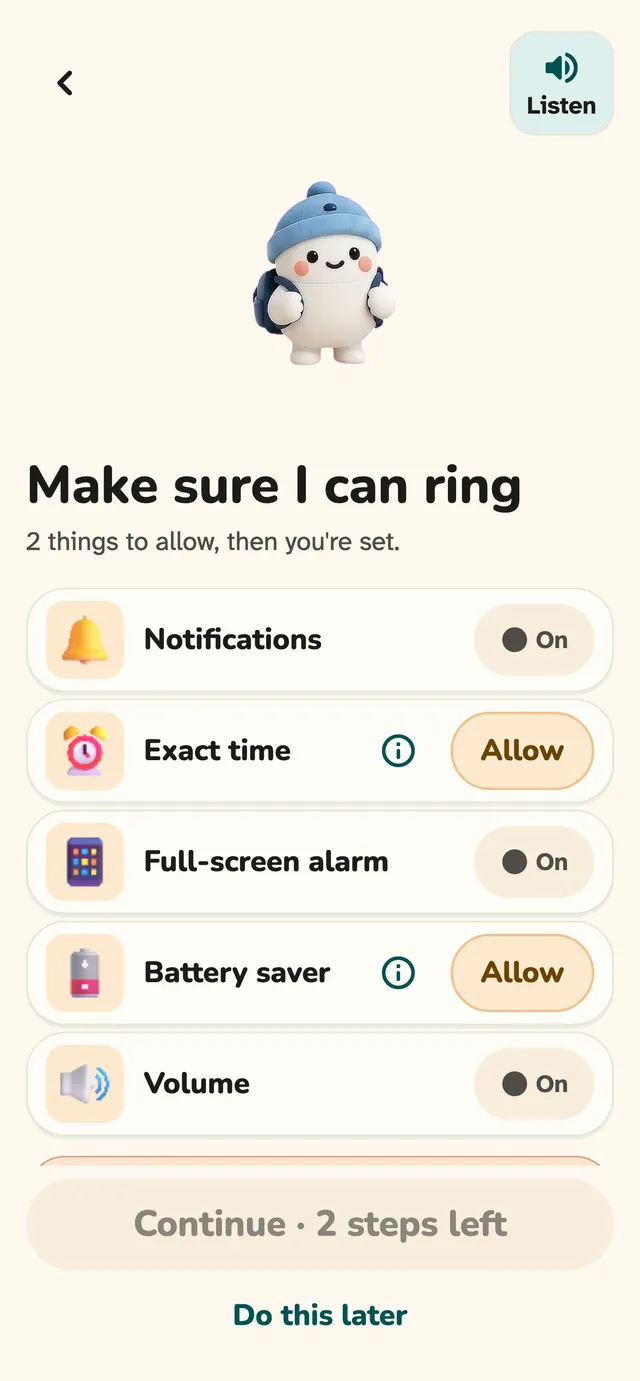
On iPhone with iOS 26.1 or later, Pillbond rings as a real iPhone alarm, full screen when locked and even in silent mode. Apple draws that alarm, so a few things work differently from Android.
Checked against the app on 12 November 2026 · 13 steps · 8 min read
Part of this guide may change soon. Some iPhone parts are in the app but not yet seen on a real iPhone: the ring opening at once while Pillbond is open, a banner tap opening the ring, and a follow-up reminder 5 minutes after the last ring if a dose is still open. A custom alarm card on the lock screen is built only for testing and is off. A full-screen “incoming call” style alarm is not built.
Walk through it
Step 1 of 13
Open Get your phone ready
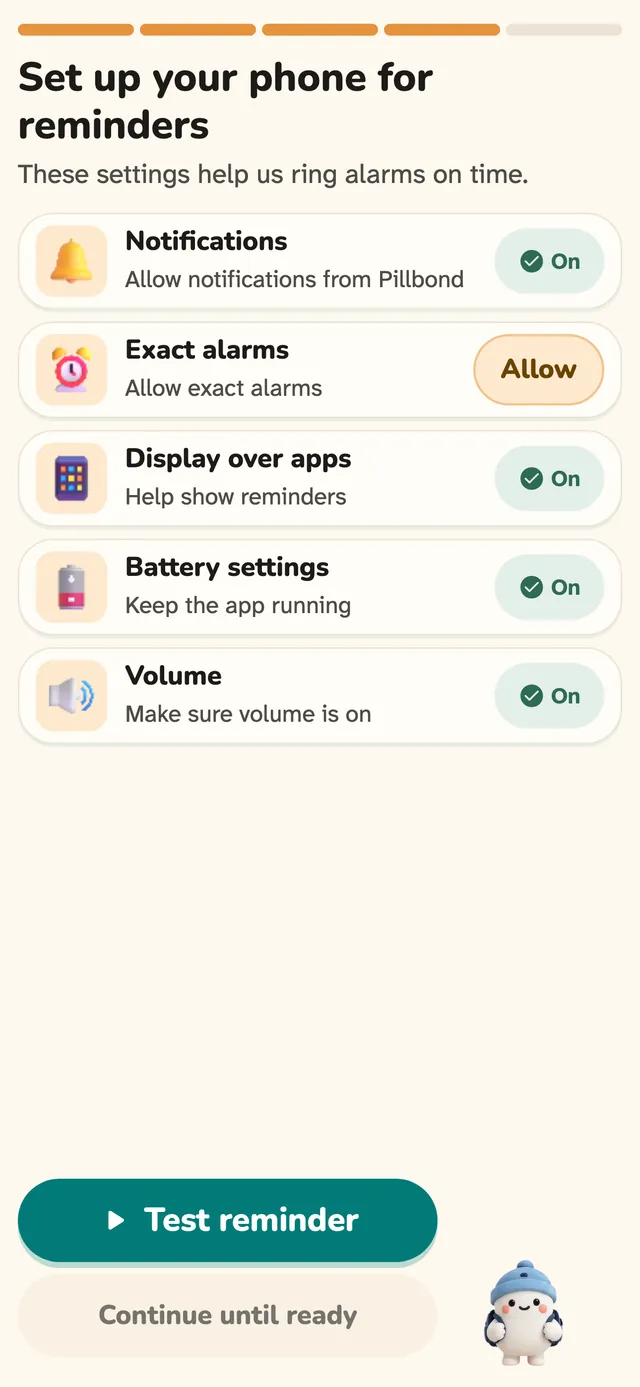
The first time, Pillbond shows Get your phone ready. Later you find it in Settings > Phone ready for alarms. On iPhone the main rows are Notifications and Alarms.
Steps
Step 1: Open Get your phone ready
The first time, Pillbond shows Get your phone ready. Later you find it in Settings > Phone ready for alarms. On iPhone the main rows are Notifications and Alarms.
What the buttons do
- Fix / Allow: asks for the permission, or opens the right settings page.
- Test the alarm: rings a test alarm in 10 seconds.
Step 2: Allow alarms
Tap Allow on the Alarms row. iPhone asks if Pillbond may set alarms. Tap Allow.
What the buttons do
- Open settings: shown after you tapped Don't Allow. Opens Pillbond's page in the iPhone Settings app.
- Not now: closes the sheet.
Step 3: Turn on notifications
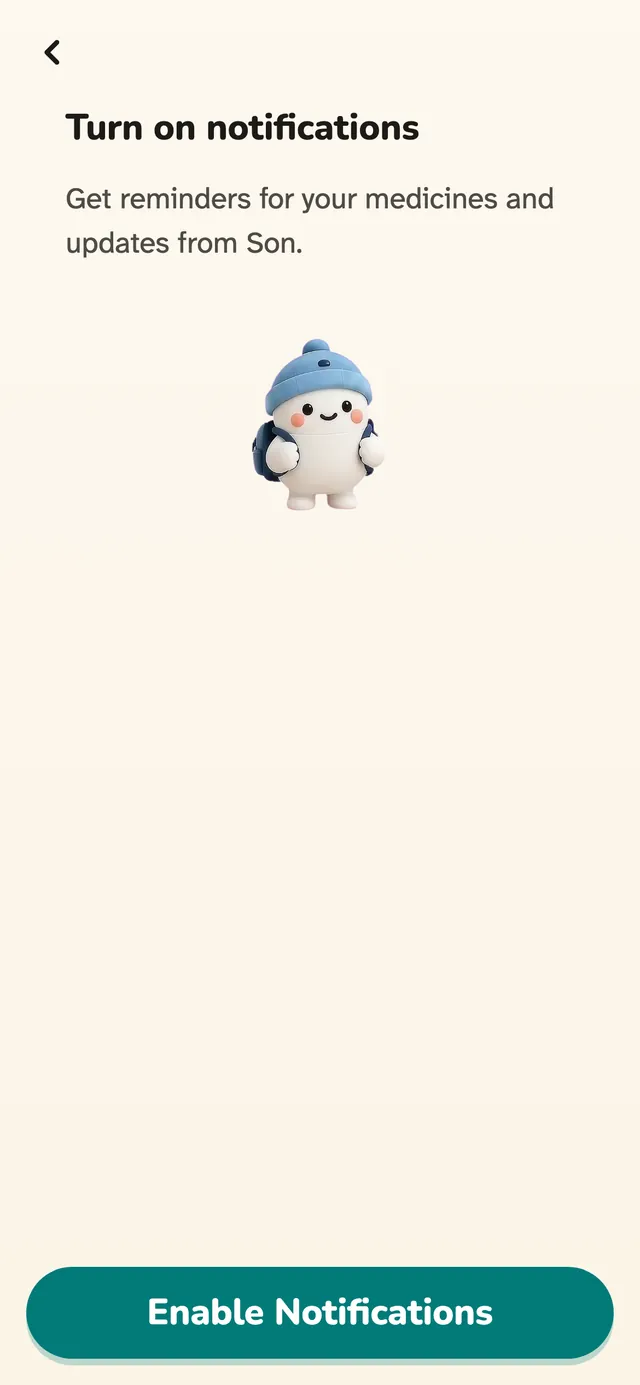
Tap Turn on. Pillbond shows a short screen that says why, then iPhone's own question. Tap Allow.
What the buttons do
- Enable Notifications: shows iPhone's question.
- Back: leaves without asking anything.
- Open Settings: shown if notifications are still off. Turn on Notifications for Pillbond, then come back.
- How to turn it on: plain steps for iPhone.
Step 4: Check what iPhone shows
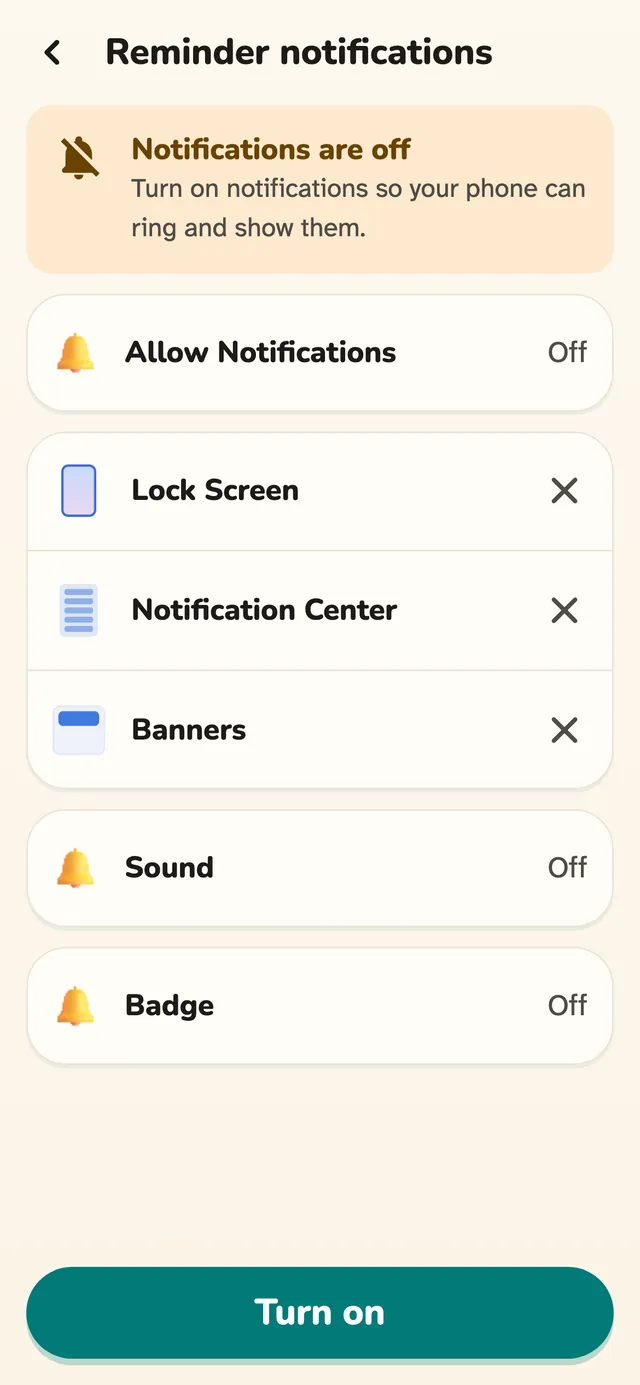
In Settings, tap the Notifications row to open Reminder notifications. It shows, read from the iPhone, whether Pillbond appears on the lock screen, in Notification Center, as banners, with sound and with a badge.
Step 5: Run the test alarm
In Phone ready, tap Test the alarm. It rings in 10 seconds. Then answer “Did the test alarm ring?”.
What the buttons do
- Yes, it rang: shows “It works”.
- It did not ring: helps you check the settings again.
Step 6: Try a full reminder
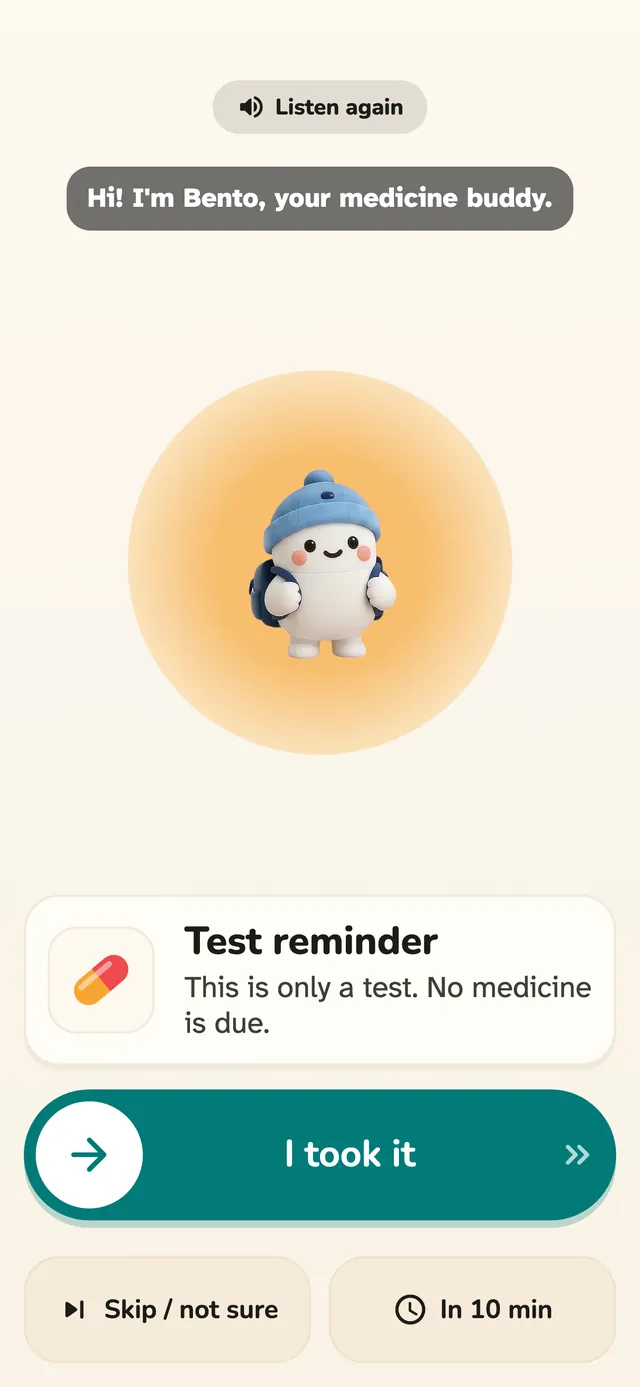
Tap the alarm-clock icon at the top of Settings. Pick a time and a test reminder rings as an iPhone alarm, titled “Test reminder”.
What the buttons do
- In 1 min (chosen at first) / In 2 min / In 5 min: quick times.
- Pick a time: a past time rings tomorrow.
- Set test reminder: sets it.
- Cancel: removes the waiting test.
- Yes, it rang / It did not ring: tell Pillbond how it went.
Step 7: Choose the alert sound
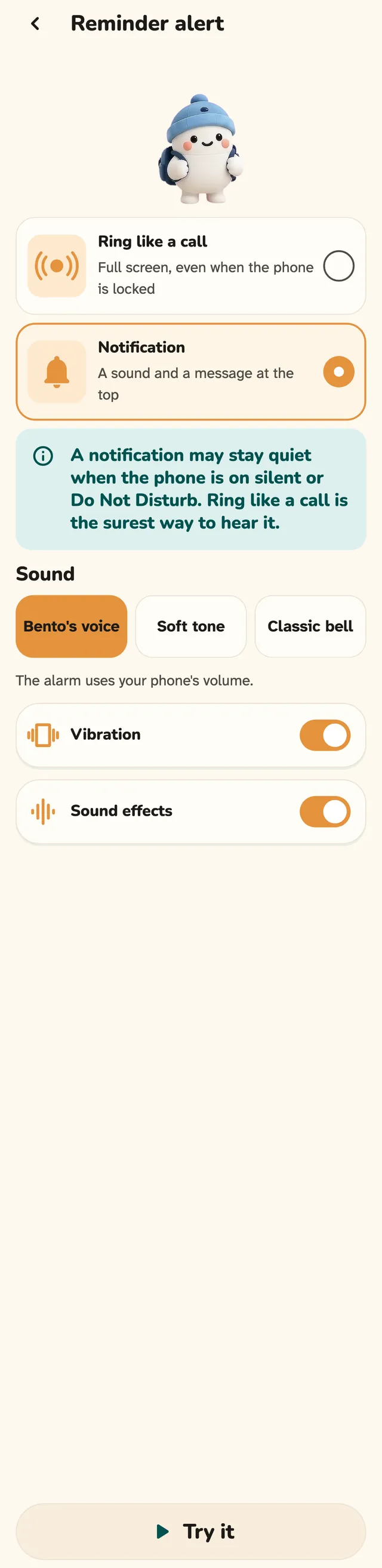
Open Settings > Reminder alert. On iPhone you choose whether the buddy speaks or only the tone plays while Pillbond's ring screen is open.
What the buttons do
- Voice + tone (default): the buddy says “Time for your medicine” on the ring screen.
- Tone only: nothing is read aloud by itself. Listen again still reads.
Step 8: When the phone is locked
At dose time Apple's full-screen alarm appears with the title “Time for your medicine”, a Stop control and a Later button. Stop, then unlock with Face ID, and Pillbond opens on that dose's answers.
What the buttons do
- Stop: ends the sound and opens Pillbond on the dose after you unlock. It does not record the dose.
- Later: ends the sound and rings again in 10 minutes. The app does not open.
Step 9: When you are using the iPhone
While the iPhone is unlocked and in use, Apple shows the alarm as a small banner, not full screen. Tap the banner to open Pillbond's ring screen.
Step 10: Answer on the ring screen
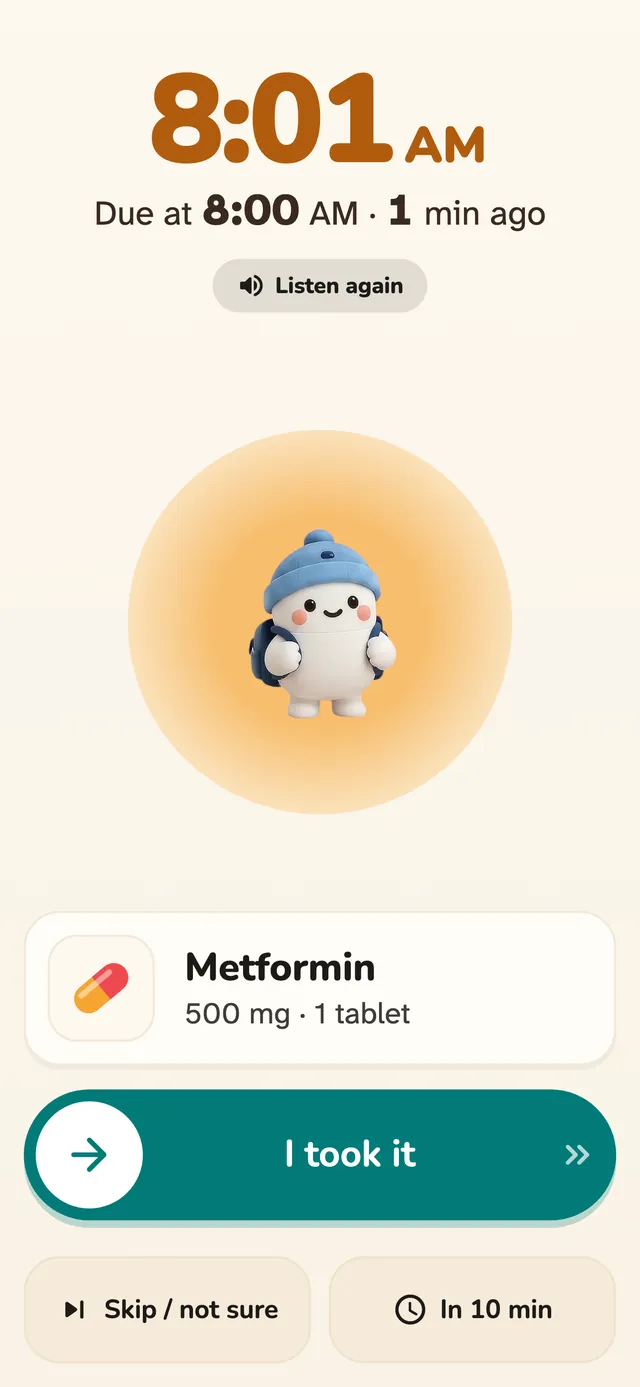
Pillbond's ring screen is the same on iPhone and Android. Slide “I took it” to the end to answer.
What the buttons do
- I took it (slide): slide the knob all the way. A tap alone shows “Slide to the end”.
- Skip / not sure: opens Skip and Not sure.
- In 10 min: rings again in 10 minutes. A Self account sees Snooze.
- Listen again: repeats the spoken line.
Step 11: Side button, volume buttons and the silent switch
On Apple's alarm, pressing the side button or a volume button stops it, just like Stop. Pillbond cannot change this. Your dose is not lost.
Step 12: Answer from Notification Center
Every alarm comes with a quiet notification that stays in Notification Center until you answer or swipe it away. Tap it to open the dose's answers.
What the buttons do
- Tap the notification: opens the ring screen for that dose.
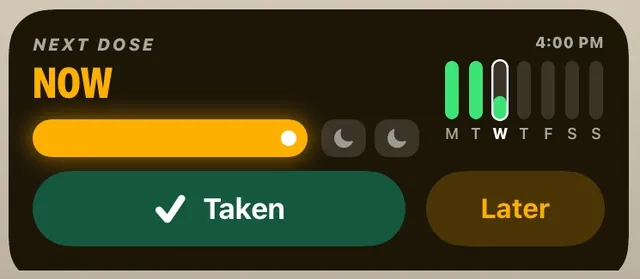
Step 13: See the dose on the lock screen and Dynamic Island
30 minutes before a dose, a Live Activity can show on the lock screen and in the Dynamic Island, counting down to the dose. You can tap Taken without opening the app.
What the buttons do
- Taken: records the dose. On a locked iPhone it asks for Face ID first.
- Later: snoozes 10 minutes. It records nothing.
- Undo: shown for 5 seconds after Taken.
Good to know
- iPhone allows no app to show its own full-screen alarm while the phone is in use, or to put a picture on Apple's alarm.
- The side and volume buttons stop Apple's alarm. No app can change that.
- Pillbond cannot set the alarm's volume or vibration. They follow Settings > Sounds & Haptics.
- On iPhone the alarm keeps ringing until you act. There is no automatic snooze after 60 seconds as on Android.
- Pillbond does not ring like a real phone call. Apple's call system is for calling apps only.
- Pillbond does not hold Apple's Critical Alerts or Time Sensitive permission. These only change sound and Focus, never full screen.
- Alarms ring without internet.
Questions about this
Why isn't the alarm full screen while I use my iPhone?
Apple shows alarms as a small banner while the iPhone is in use, for every app. Tap the banner to open Pillbond's ring screen. When the iPhone is locked, the alarm is full screen.
I pressed the side button and the alarm stopped. Is my dose lost?
No. A button press counts as Stop, which records nothing. The reminder stays in your notifications, later rings still come, and you can answer by tapping it.
Will it ring if my iPhone is on silent?
Yes. On iOS 26.1 and later Pillbond rings as an iPhone alarm, which rings in silent mode.
Can I make the alarm louder from Pillbond?
No. iPhone lets no app set an alarm's volume or vibration. Change them in the iPhone Settings app under Sounds & Haptics.
I opened Pillbond later and no alarm screen came up. Why?
Pillbond opens the ring by itself only if it rang in the last 10 minutes. An older dose waits on Today, where you can still answer it.
More guides
- Parent and SelfHow to make Pillbond alarms ring on AndroidAllow the few phone settings that let the medicine alarm ring on time, full screen and out loud.
- Family and parentHow to scan a prescription and use RecordsScan a medical paper, check what the AI read, save the medicines and keep every paper in Records.