
Parent
How to use Pillbond as a parent
Your family adds your medicines and sends you a code. At each dose time your phone rings like a call, and you answer with one slide.
Checked against the app on 12 November 2026 · 13 steps · 8 min read
Walk through it
Step 1 of 13
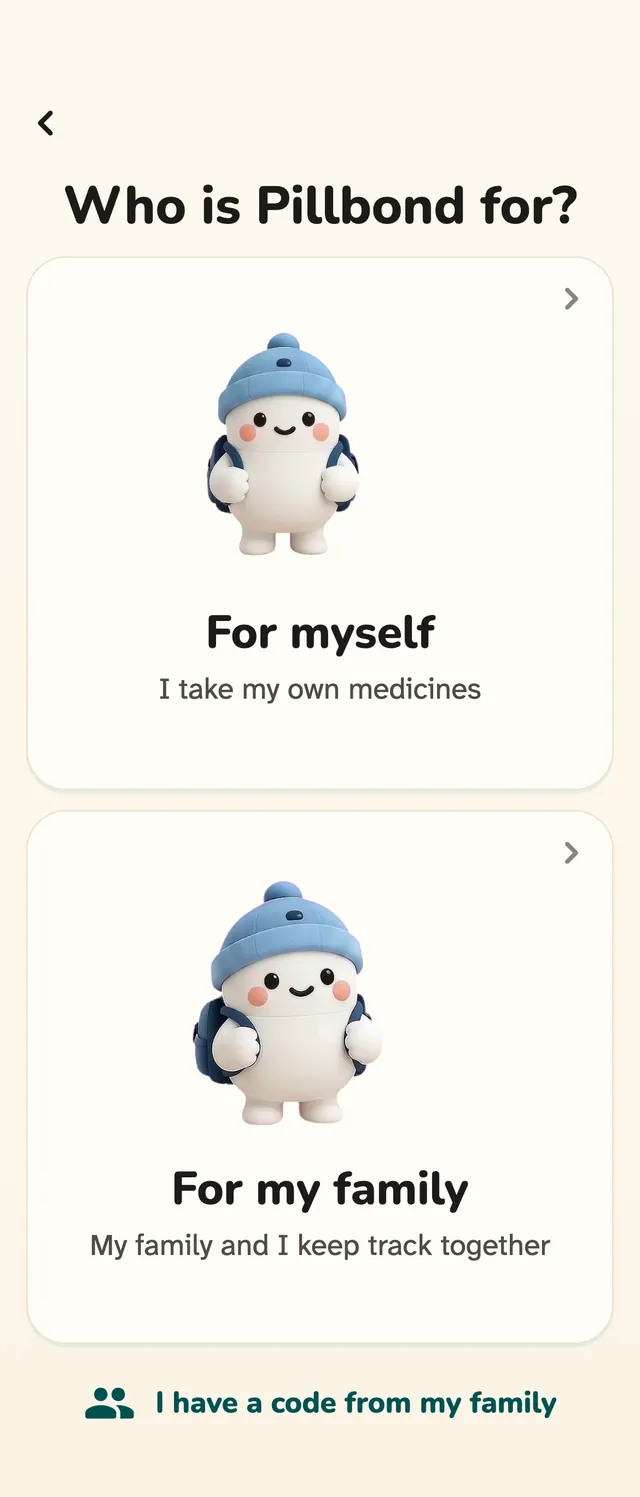
Open Pillbond and tap I have a code
Install Pillbond and open it. Pick your language, then tap I have a code from my family.
Steps
Step 1: Open Pillbond and tap I have a code
Install Pillbond and open it. Pick your language, then tap I have a code from my family.
What the buttons do
- A language: switches the app to it at once.
- I have a code from my family: takes you to joining your family.
- For my family, then I take the medicines: the same way in.
Step 2: Sign in
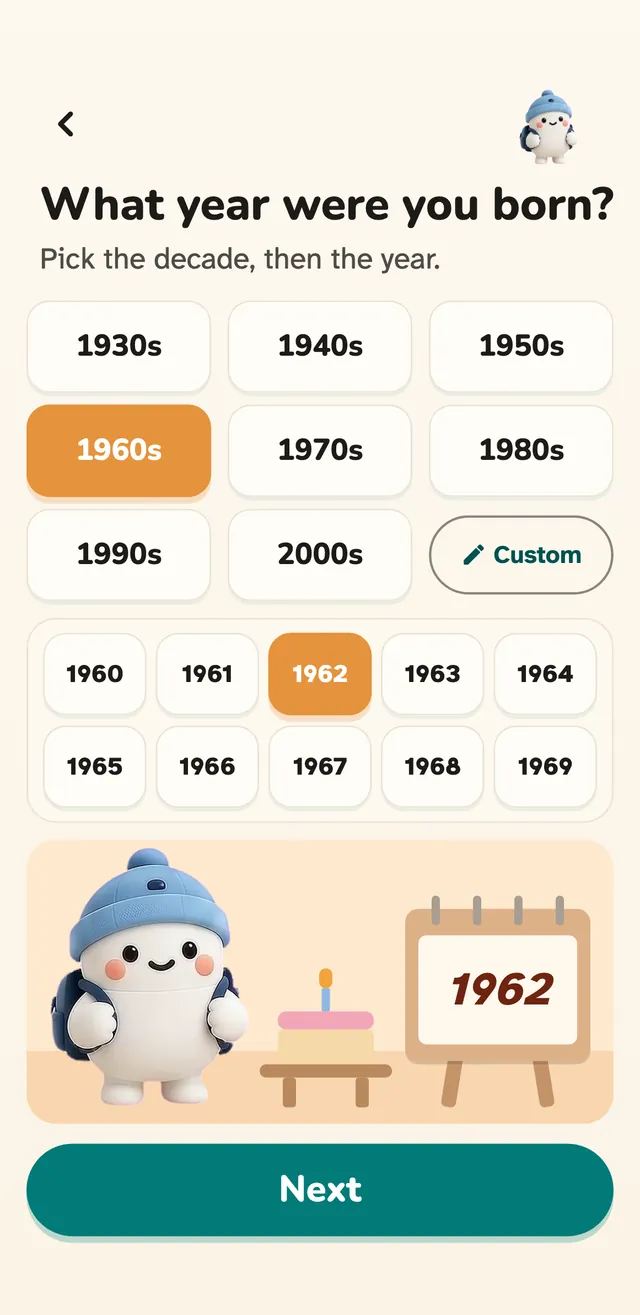
Sign in with Google, Apple or email, then give your year of birth.
What the buttons do
- Google, Apple or email: signs you in.
- A year: sets your year of birth.
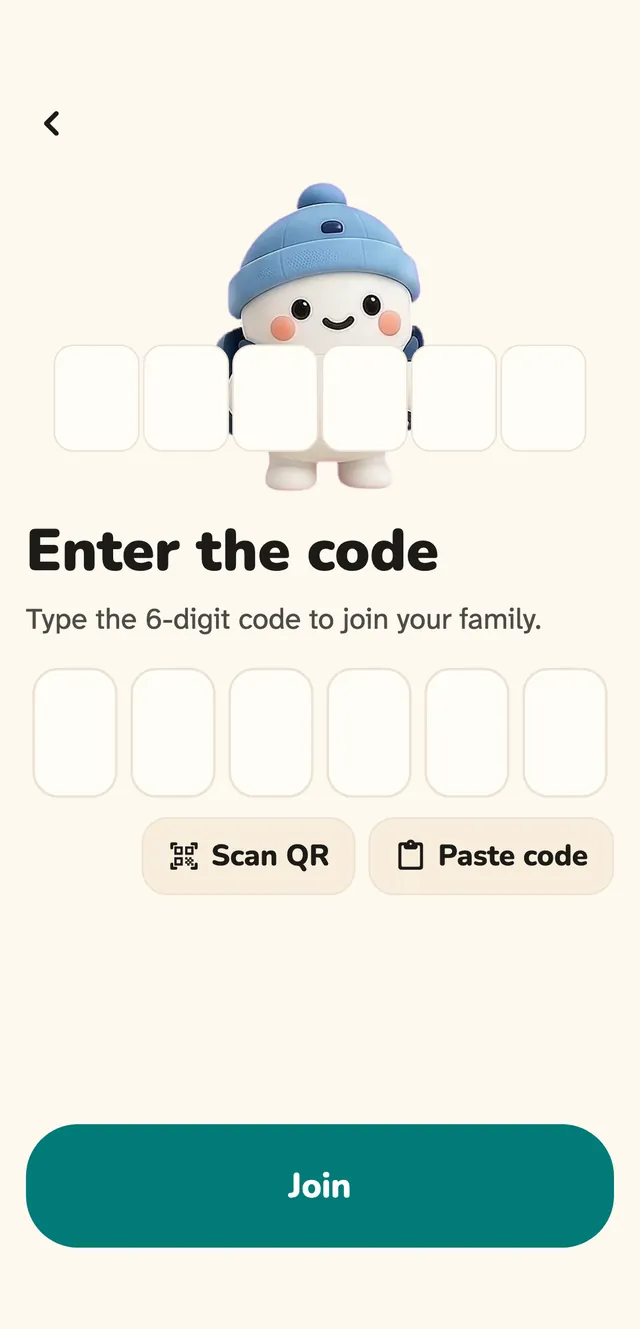
Step 3: Enter the code or scan the QR
Type the 6-digit code your family sent you, or scan the QR code on their phone.
What the buttons do
- Enter the 6-digit code: six boxes that fill as you type.
- Scan QR code (Android): scans the QR on your family's phone.
- Join: checks the code.
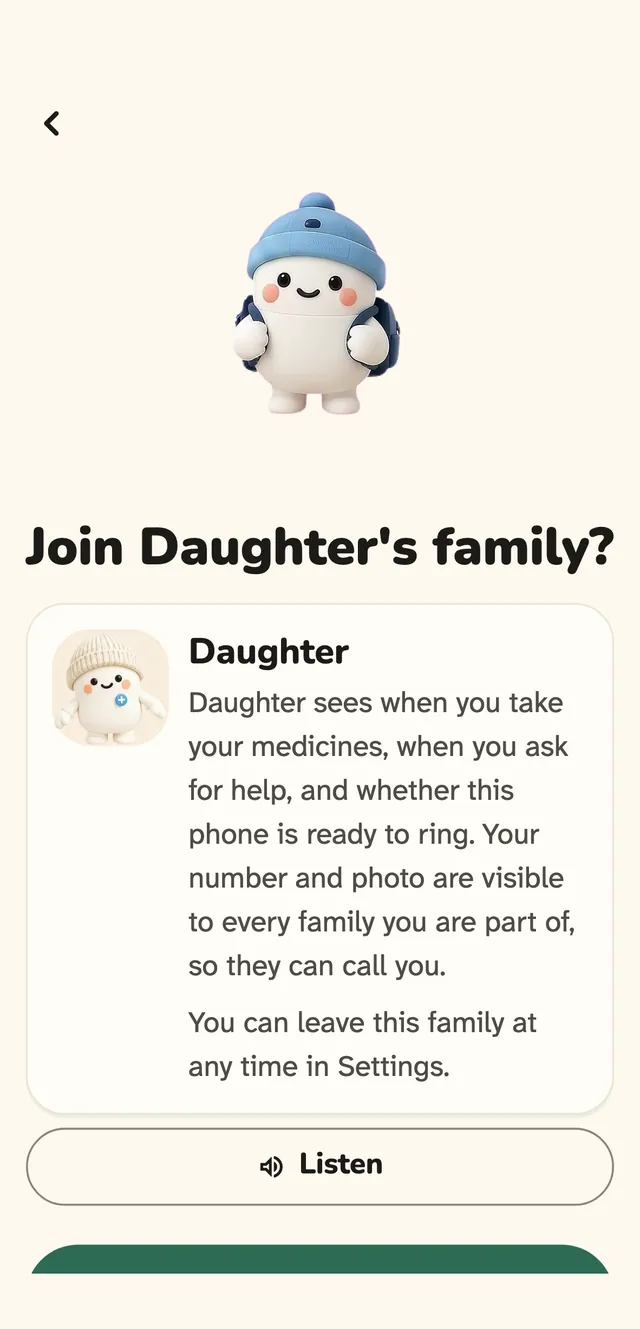
Step 4: Say yes to join your family
Pillbond shows who invited you and what they will see. Read it, or tap Listen to hear it, then tap Yes, join.
What the buttons do
- Yes, join: joins this family.
- Listen: reads the words out loud.
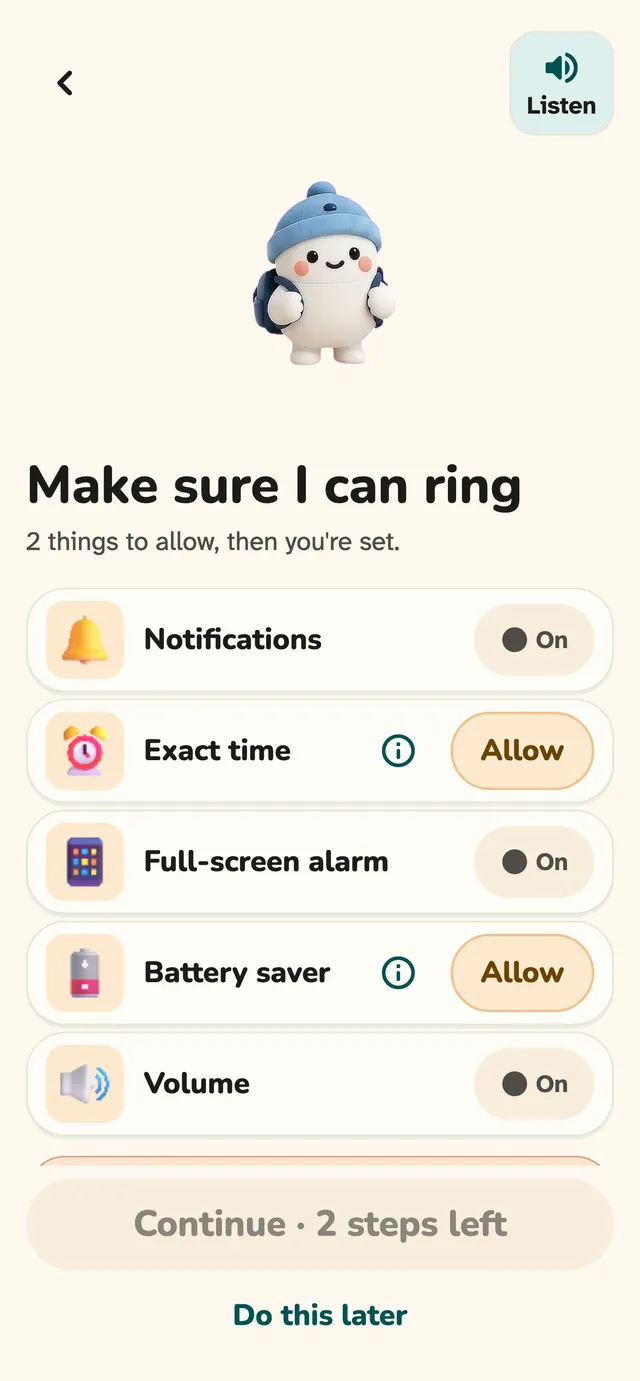
Step 5: Check your meal times and your phone
Pillbond reads your meal times aloud, then checks the phone settings that could stop your alarm.
What the buttons do
- These look right: keeps your meal times.
- Allow or Fix: opens the setting that needs changing.
- Do this later: leaves the check for now.
- Listen: reads the screen out loud.
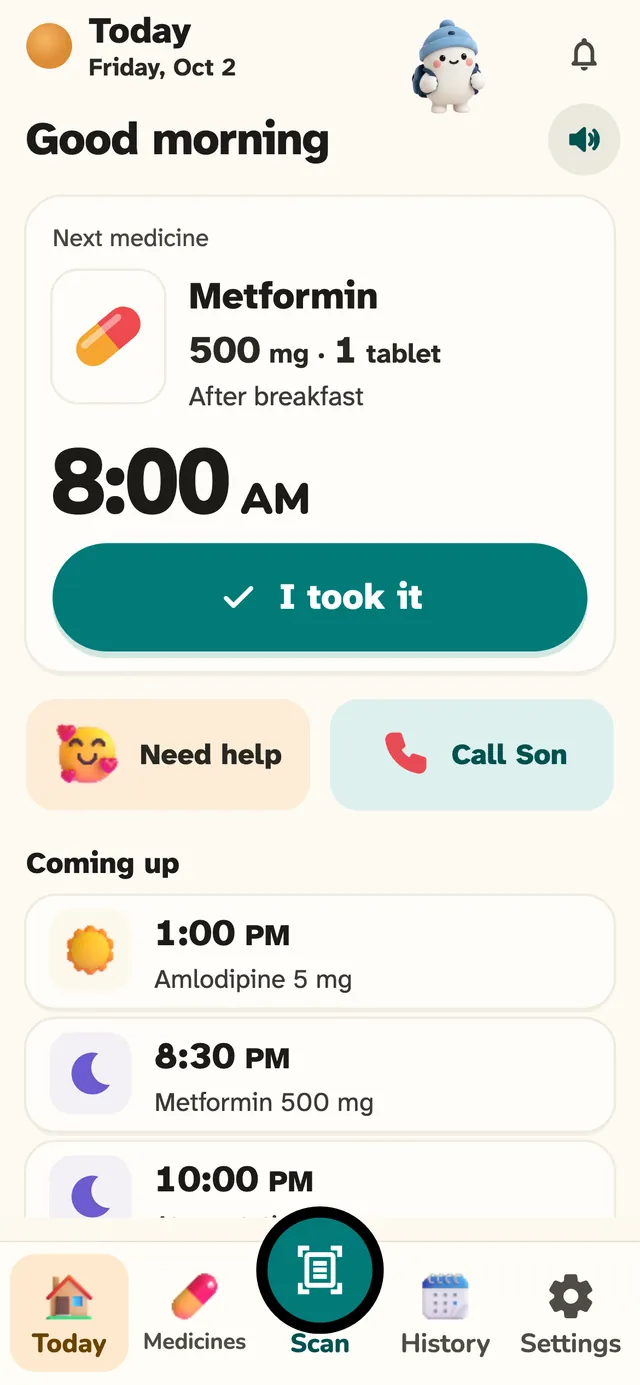
Step 6: Read your Today screen
Today shows a greeting, your next medicine in a big card with its time, and what is coming up later.
What the buttons do
- I took it: records the dose.
- Listen (the round speaker): reads your greeting, next dose and what is coming up.
- Need help: sends a help request to your family.
- Call (name): calls your family member.
- The bell: opens your recent activity.
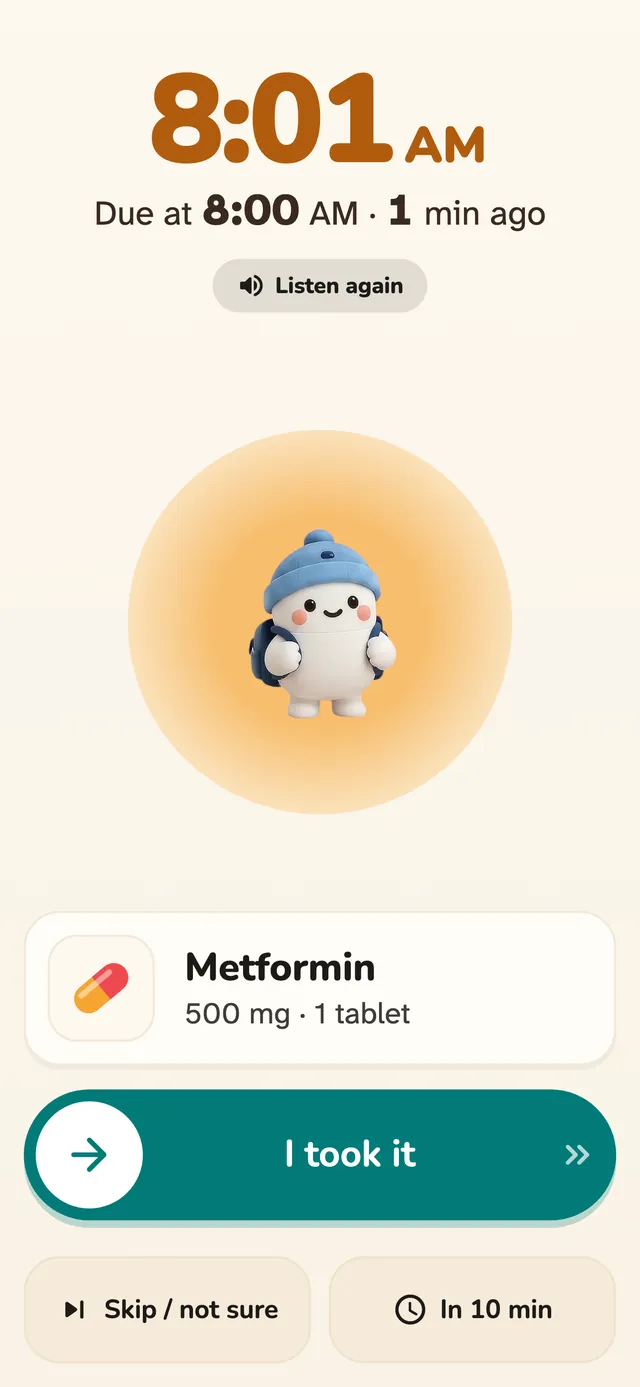
Step 7: Answer when your phone rings
At dose time your phone rings like an incoming call, full screen, even over the lock screen. Slide I took it all the way to the end.
What the buttons do
- I took it (slide): records the dose. A tap only shows Slide to the end.
- In 10 min: rings again in 10 minutes.
- Skip / not sure: asks if you skipped it or are not sure.
- Listen again: says the reminder once more.
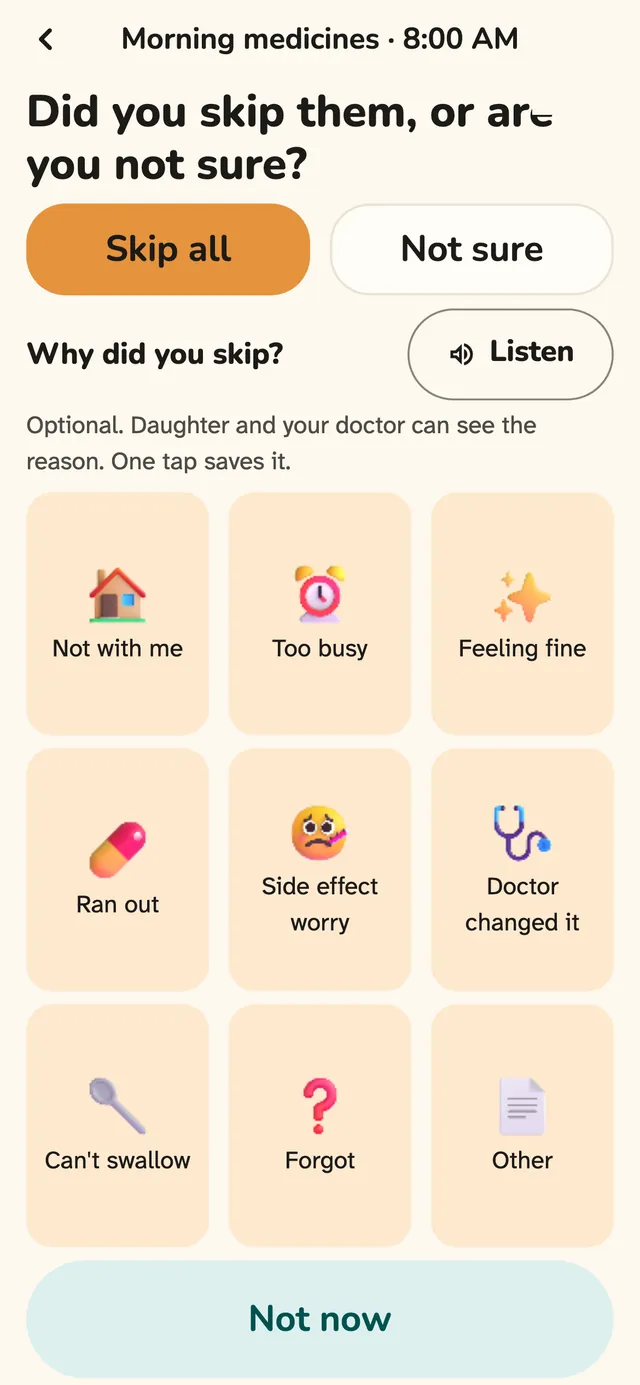
Step 8: Skip or not sure
Choose Skip or Not sure. After Skip, you can tap one big reason. It is optional.
What the buttons do
- Not sure: records Not sure.
- A reason, such as Not with me, Ran out or Forgot: records the skip with that reason.
- Other: opens a short note, then Save.
- Not now: records the skip with no reason.
- Back: returns to the alarm and records nothing.
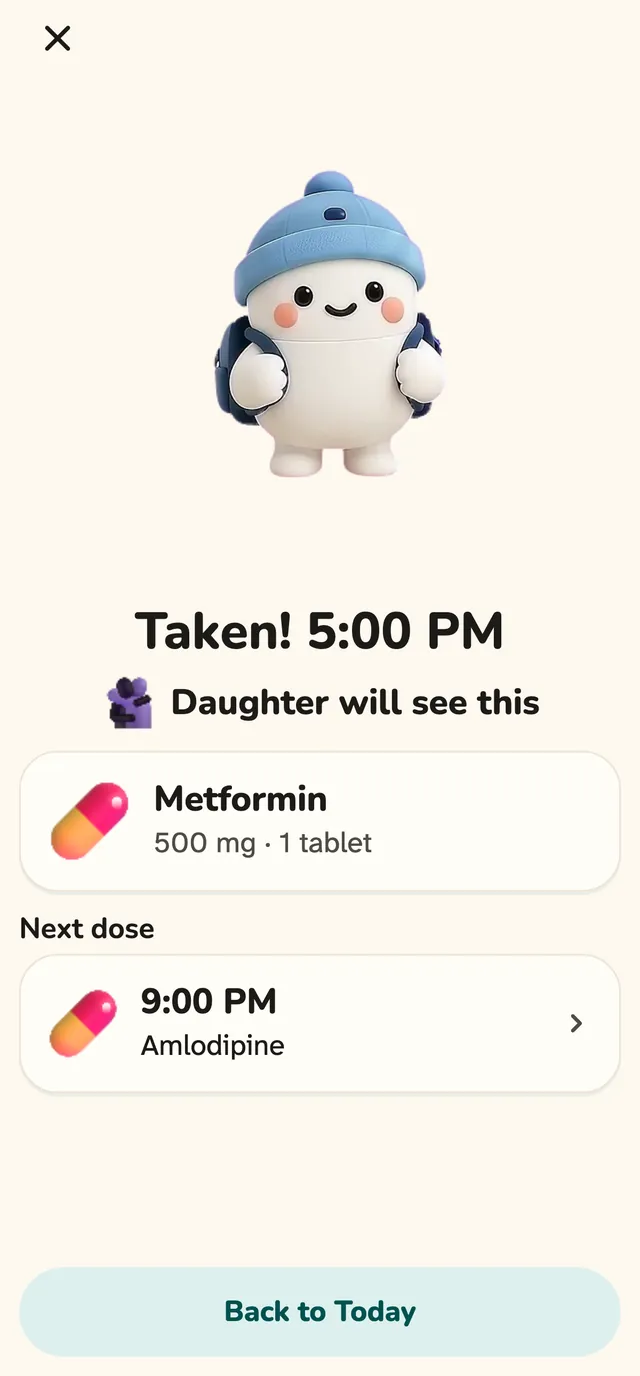
Step 9: See the Done screen
After you answer, Pillbond says Done and that your family will see it, then shows your next medicine.
What the buttons do
- Undo: shows for 5 seconds after I took it, and takes the answer back.
Step 10: Change an answer or catch up
Tap a dose under Earlier today to change it. If you missed a dose, you can still answer it on Today.
What the buttons do
- Taken, Skipped or Not sure: changes the answer.
- Why? or Change why: adds or changes the reason for a skipped dose.
- Skip / not sure under I took it: for a dose that got no answer.
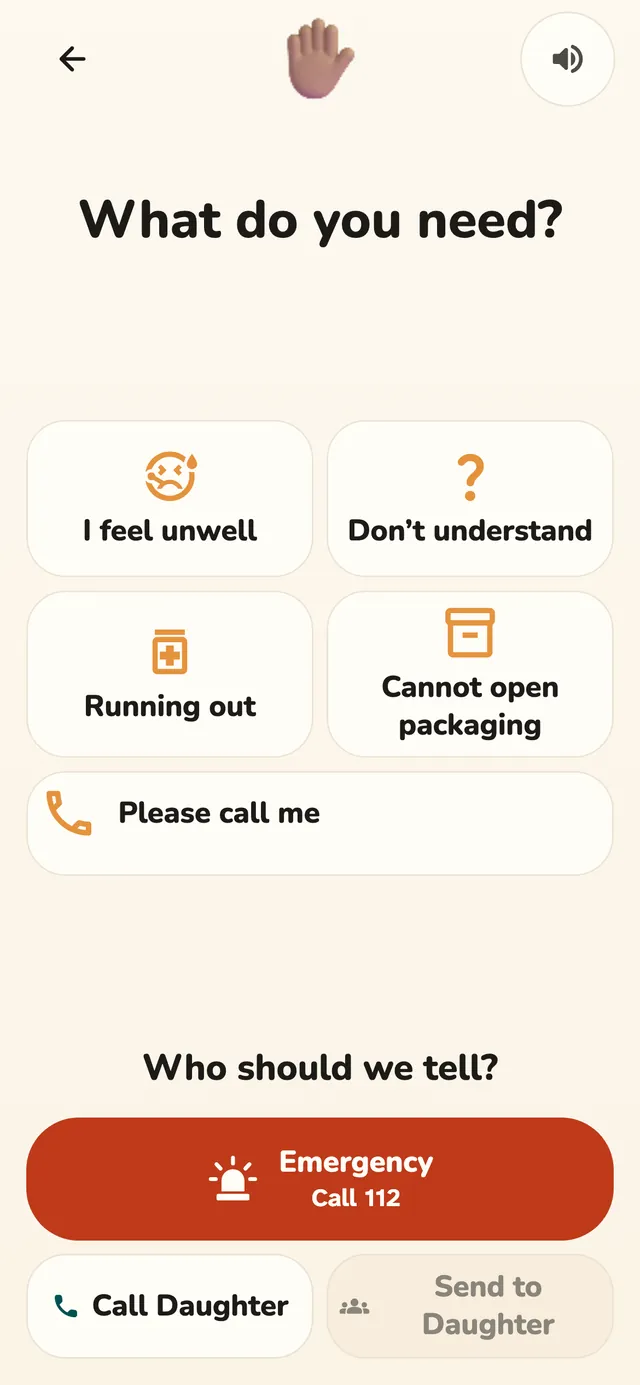
Step 11: Ask your family for help
Tap Need help on Today. Choose what you need, and Pillbond tells your family.
What the buttons do
- A reason: Running out, Don't understand, I feel unwell, Please call me or Cannot open packaging.
- Send: sends the request to your whole family.
- Call (name): calls your family member.
- Emergency: opens the phone's dialer with the emergency number. It never dials by itself.
Step 12: When your family asks where you are
If your family taps Find, your phone rings and asks. Only if you press Share is your place sent, one time.
What the buttons do
- Share: sends your location once.
- Not now: sends nothing.
Step 13: Use the bottom bar and Settings
The bar has Today, Medicines, Scan in the middle, History and Settings, with large buttons.
What the buttons do
- Medicines: every medicine your family saved, with its times and a speaker. You cannot edit it.
- Scan: photograph a paper for your family to check.
- History: your dose calendar.
- Settings, My health: your medicines, My papers, history and Doctor visits.
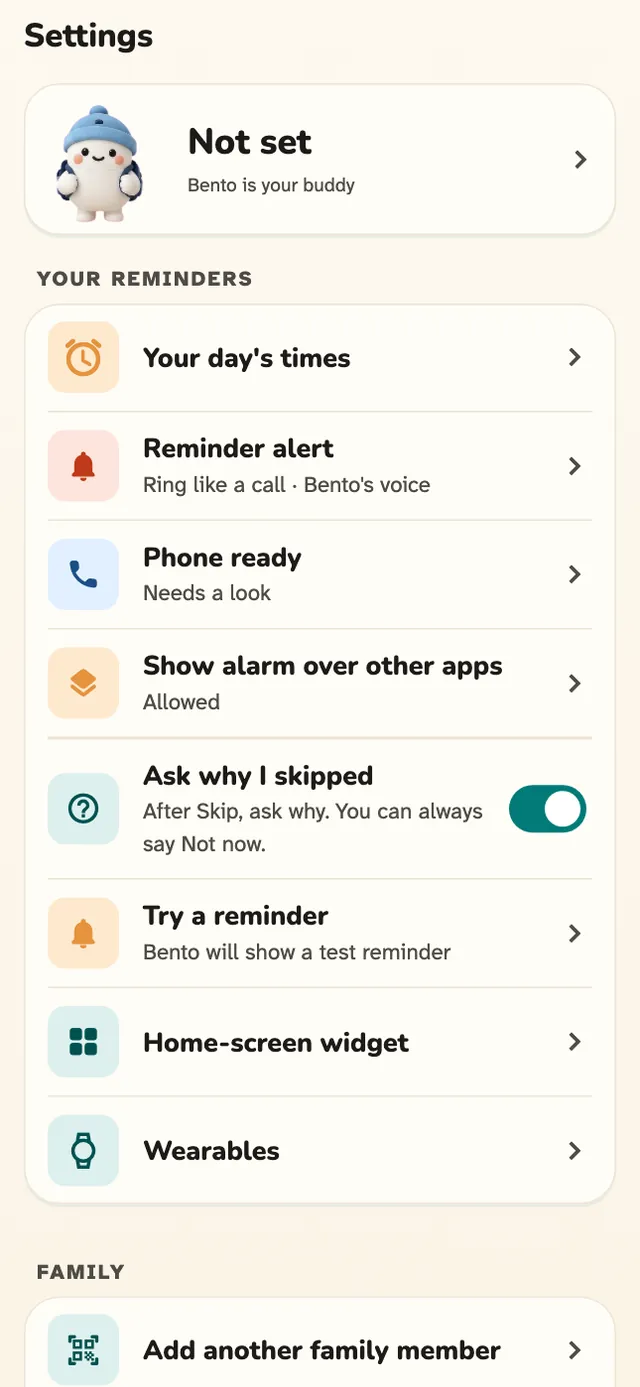
- Settings, Reminder alert: ring like a call or notification, sound and vibration.
- Settings, Try a reminder: a test reminder in 1, 2 or 5 minutes. Nothing is recorded.
- Settings, Add another family member: joins a second family with their code.
Good to know
- Everything can be read aloud in your own language.
- Medicines due within 5 minutes of each other ring as one alarm, with I took them all.
- An alarm stops 2 hours after the dose time. After that, a late answer asks This dose was at a time. Did you take it?
- Your answers are saved on the phone first, so nothing is lost without signal.
- Medicine names never show on the lock screen or in a notification.
- On iPhone, a side or volume button stops the alarm. The reminder stays in your notifications to answer.
- Pillbond is not a medical device. It does not give advice or change doses.
Questions about this
Do I have to type in my medicines?
No. Your family adds your medicines. You see them under Medicines on the bottom bar.
What if I tap the wrong answer?
Tap Undo within 5 seconds, or later tap the dose under Earlier today on Today and change it.
Will the alarm ring if my phone is on silent?
Yes, with Ring like a call. Only zero alarm volume or Do Not Disturb without alarms can silence it. Phone ready checks this.
Can I be in two families?
Yes. Open Settings, Add another family member, and scan or type the second family's code.
Does my family see where I am?
Only if they ask and you press Share. One reading is sent and deleted after 24 hours.
More guides
- CaretakerHow to look after your parent with PillbondFor sons, daughters and helpers who set things up and follow a parent's day.
- EveryoneHow to use Visits in PillbondAppointments coming up, past visits, and the bills and papers from each one.
- MyselfHow to use Pillbond for yourselfFor adults who look after their own medicines, with no family needed.