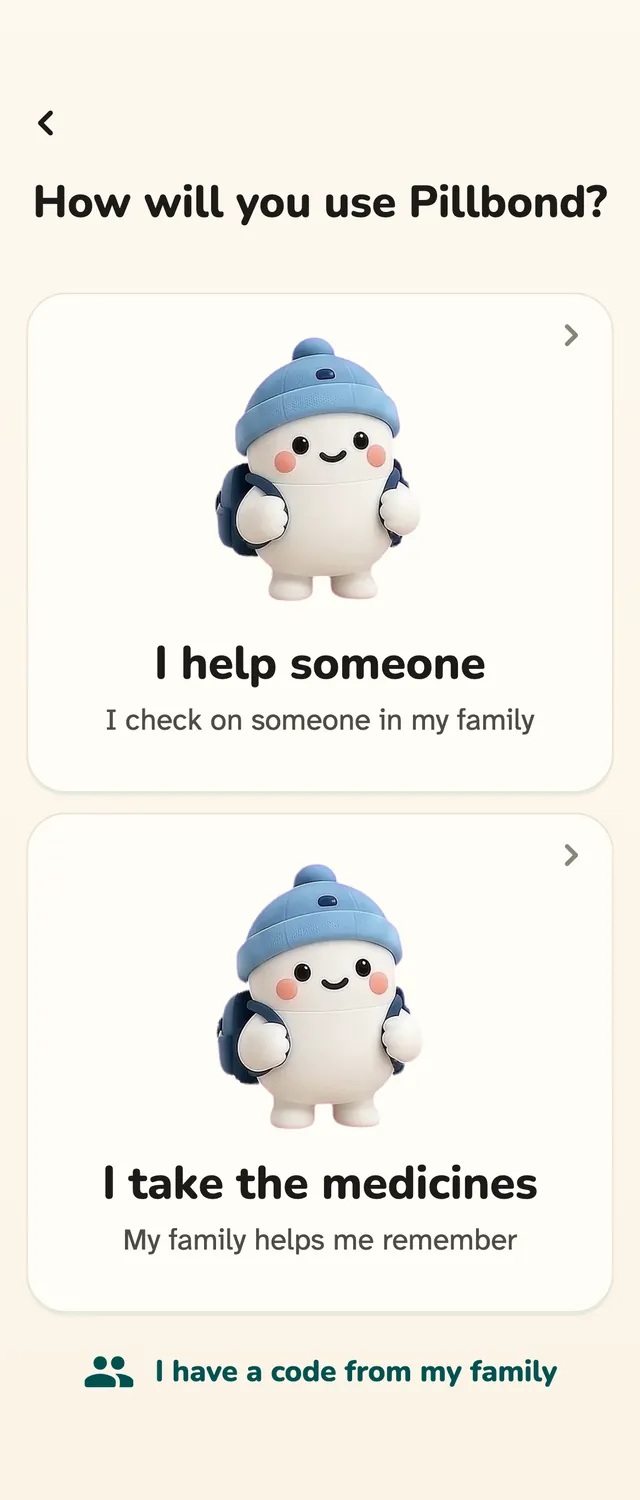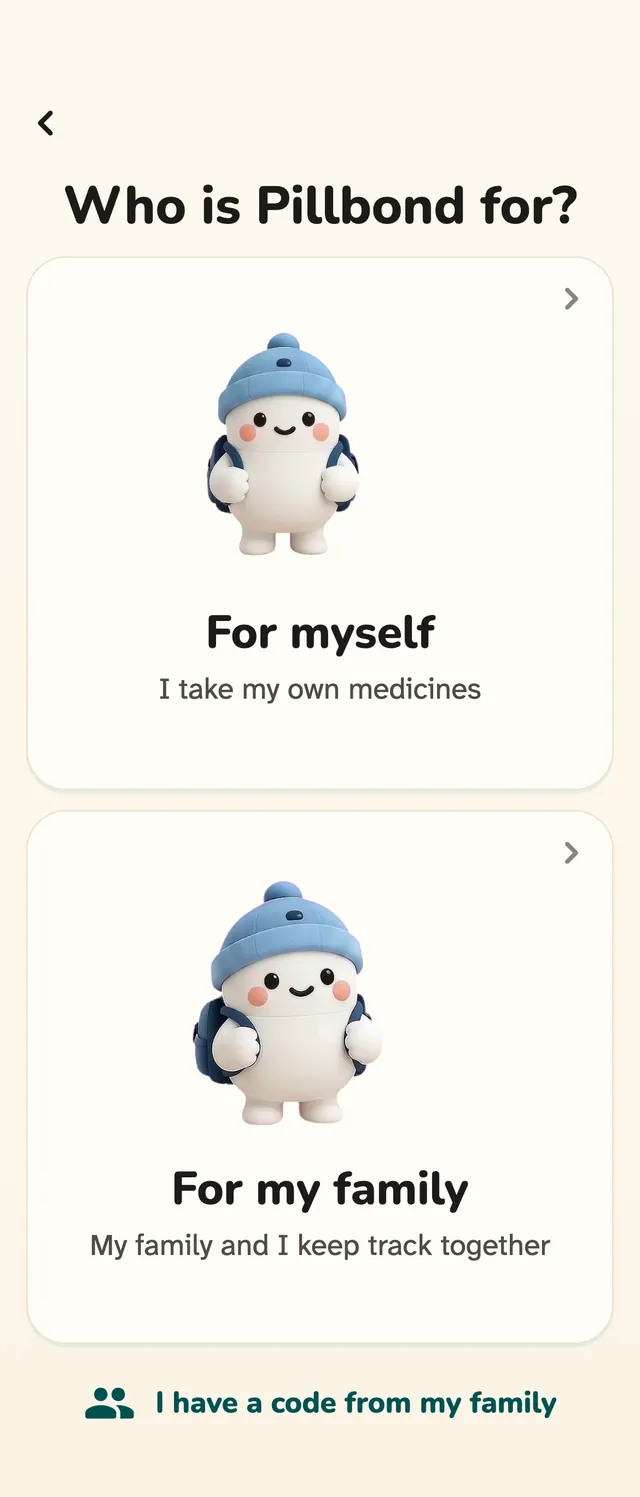

Everyone
How to use Visits in Pillbond
Visits keeps appointments that are coming up and visits that already happened, with the bills and papers from each. A scanned prescription adds its visit for you.
Checked against the app on 12 November 2026 · 10 steps · 5 min read
Walk through it
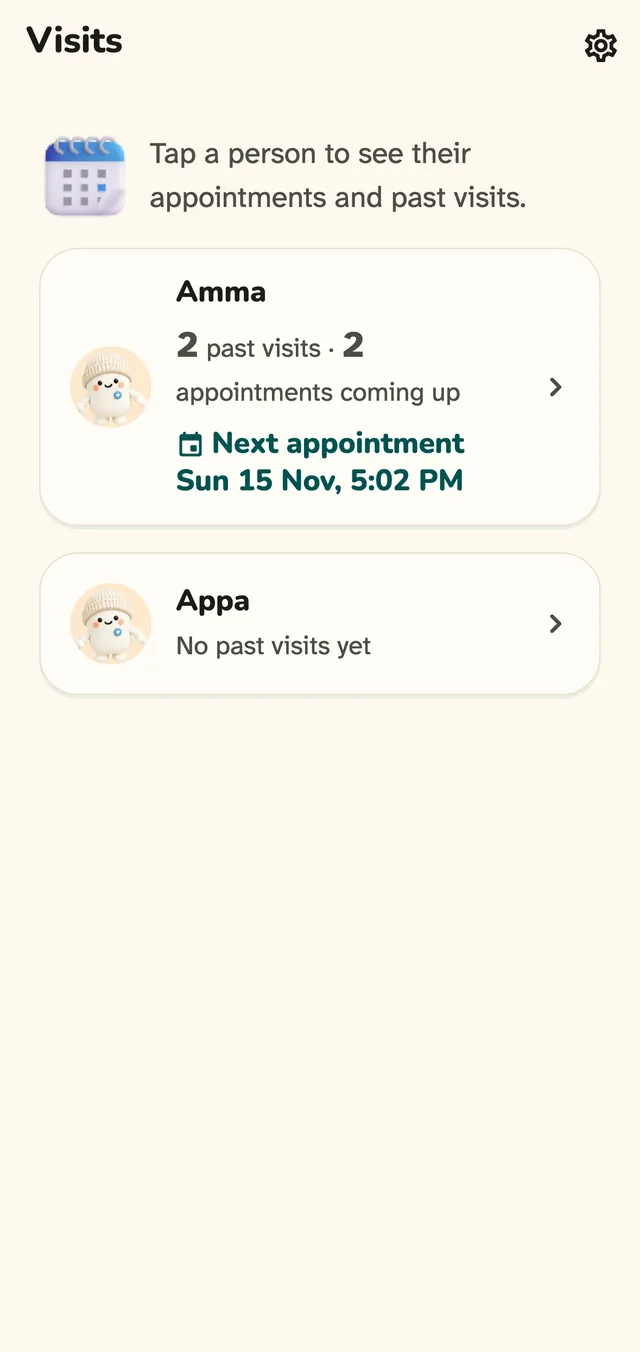
Step 1 of 10
Open Visits
Family members tap Visits on the bottom bar and pick a person. For myself has Visits on its bottom bar too.
Steps
Step 1: Open Visits
Family members tap Visits on the bottom bar and pick a person. For myself has Visits on its bottom bar too.
What the buttons do
- A person (family): opens that person's visits.
- Visits on the bar (For myself): opens your own visits straight away.
- Settings, My health, Doctor visits (parent): opens the parent's own visits.
Step 2: Read one person's page
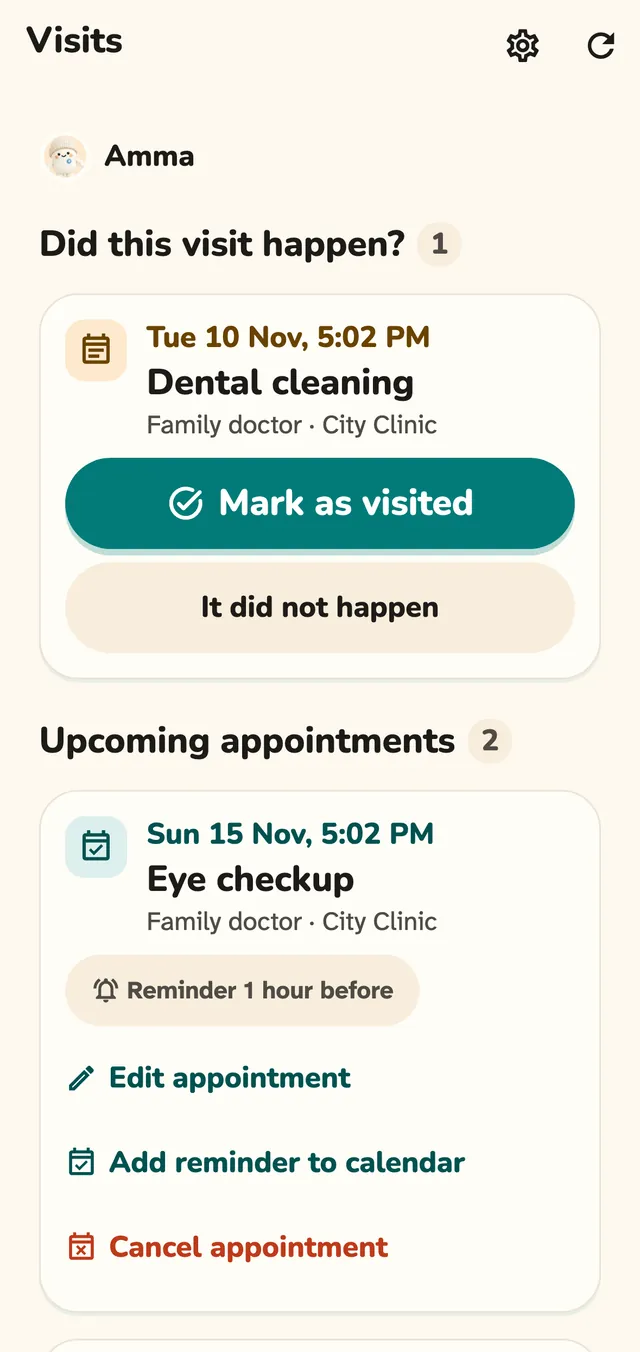
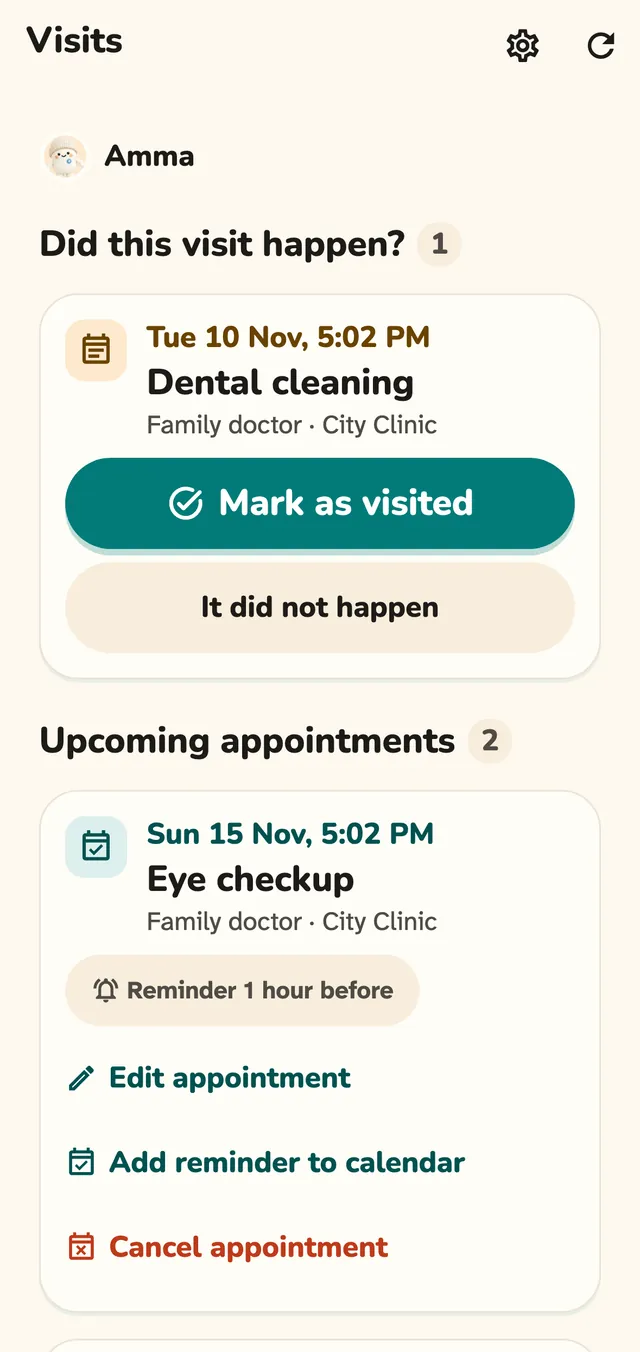
The page has three parts, in this order: visits to confirm, upcoming appointments and past visits.
What the buttons do
- Add appointment: adds one that is coming up.
- Add a past visit: records one that already happened.
- A visit or appointment: opens it.
Step 3: Add an appointment
Tap Add appointment. Say what it is for, pick the date and time, and choose when to be reminded.
What the buttons do
- What is it for?: your own words.
- Date and time: on the person's clock.
- Remind me: 15 minutes, 30 minutes, 1 hour or 1 day before.
- Add reminder to calendar: also adds it to the phone's calendar.
Step 4: Say whether the visit happened
Once an appointment's time has passed, Pillbond asks Did this visit happen? at the top of the page.
What the buttons do
- Mark as visited: opens the past visit form, filled in from the appointment.
- It did not happen: cancels the appointment.
Step 5: Record a past visit
Fill in who you saw, where, why and what the doctor said, then save.
What the buttons do
- Who and where: the doctor and the clinic.
- Why: the reason for the visit.
- What the doctor said: your notes.
- Next visit: the date of the next one, if there is one.
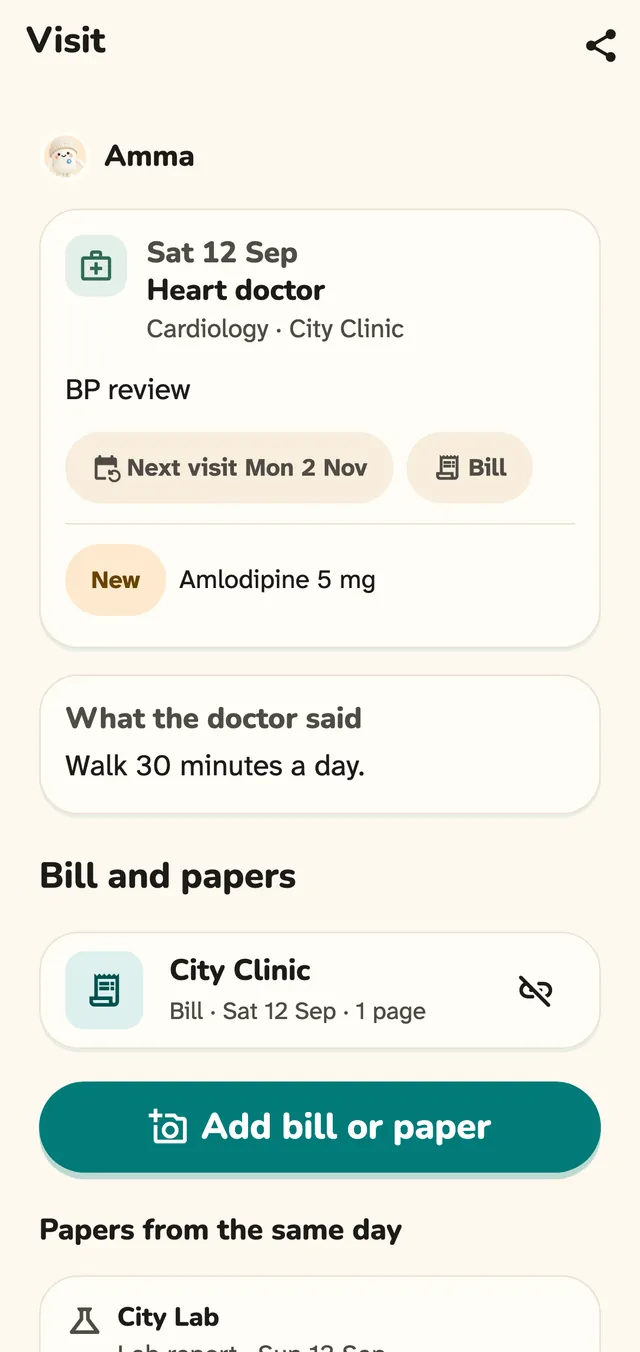
Step 6: Open a past visit
A past visit shows who, where, why, what the doctor said and the next visit, with the clinic's details read from the paper.
What the buttons do
- A clinic phone number: tap to call.
- Share: sends a Pillbond summary PDF of the visit and its papers, or the original papers.
Step 7: Add a bill or paper to a visit
On a past visit, tap Add bill or paper, choose what kind it is, then add photos.
What the buttons do
- Add bill or paper: starts adding.
- A kind (Bill first): says what the paper is.
- Add photos: adds the pages.
Step 8: Link papers from the same day
Papers saved within one day of the visit are listed under Papers from the same day. Move them in or out of the visit.
What the buttons do
- Add to this visit: links the paper to the visit.
- Remove from this visit: unlinks it. The paper stays in Records.
Step 9: Let a scan add the visit
When you scan and save a prescription, Pillbond adds a past visit with the date, doctor, clinic and follow-up from the paper.
What the buttons do
- Scan (middle of the bottom bar): scans a paper.
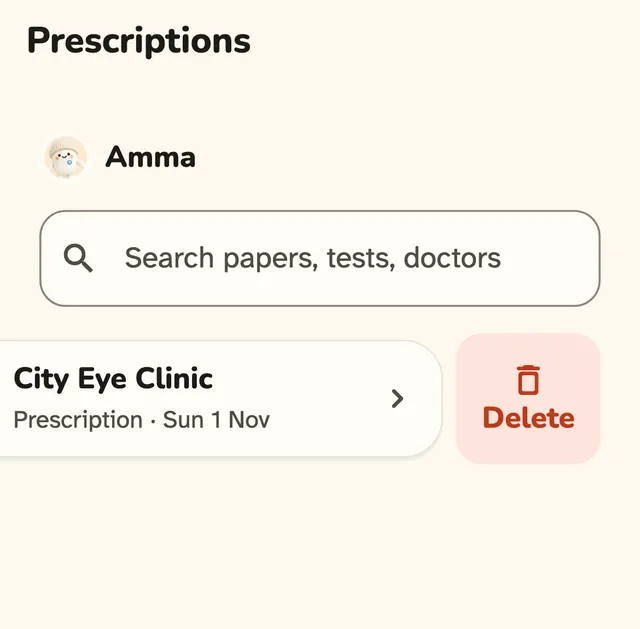
Step 10: Know what happens when a paper is deleted
Deleting a paper in Records takes it off its visit. The visit itself usually stays.
What the buttons do
- Delete this paper (on the paper's page, under More): asks first, then deletes.
- Swipe a paper's card in Records: shows a Delete button. A swipe alone never deletes.
- Keep it: closes without deleting.
Good to know
- Adding and editing appointments and visits is for the owner, an editor or the parent. A viewer can only look.
- Visits are health data. The app reads them fresh each time and does not keep a copy in its network cache.
- Every time is shown with AM or PM, on the person's own clock.
- Family members get a push about visit changes. It follows each person's visit switch and quiet hours.
- Records keeps every saved paper, sorted into prescriptions, lab reports, bills and other.
Questions about this
Can my parent add an appointment?
Yes. The parent, the owner and editors can add and edit appointments and visits. Viewers cannot.
Who gets the appointment reminder?
The parent, the owner and family members who follow up, at the time you chose in Remind me.
Why did a visit appear by itself?
A saved prescription, or a doctor's note naming a clinic, adds the visit for that day from the paper.
I deleted a paper. Is the visit gone?
Usually not. The visit stays unless it was made by that scan alone and never changed.
Can I share a visit with a doctor?
Yes. Tap Share on the visit for a summary PDF of the visit and its papers, or the original papers.
More guides
- CaretakerHow to look after your parent with PillbondFor sons, daughters and helpers who set things up and follow a parent's day.
- ParentHow to use Pillbond as a parentFor parents whose family set up their medicines and sent them a code.
- MyselfHow to use Pillbond for yourselfFor adults who look after their own medicines, with no family needed.