
Caretaker
How to look after your parent with Pillbond
You add your parent, send them a code and set their medicines. Their phone rings at each dose time, and you see each answer on your own phone.
Checked against the app on 12 November 2026 · 14 steps · 10 min read
Part of this guide may change soon. Screenshots of some caretaker screens come with the next update. Buying a plan in the App Store or Google Play is built but not switched on yet; see the plans guide.
Walk through it
Step 1 of 14
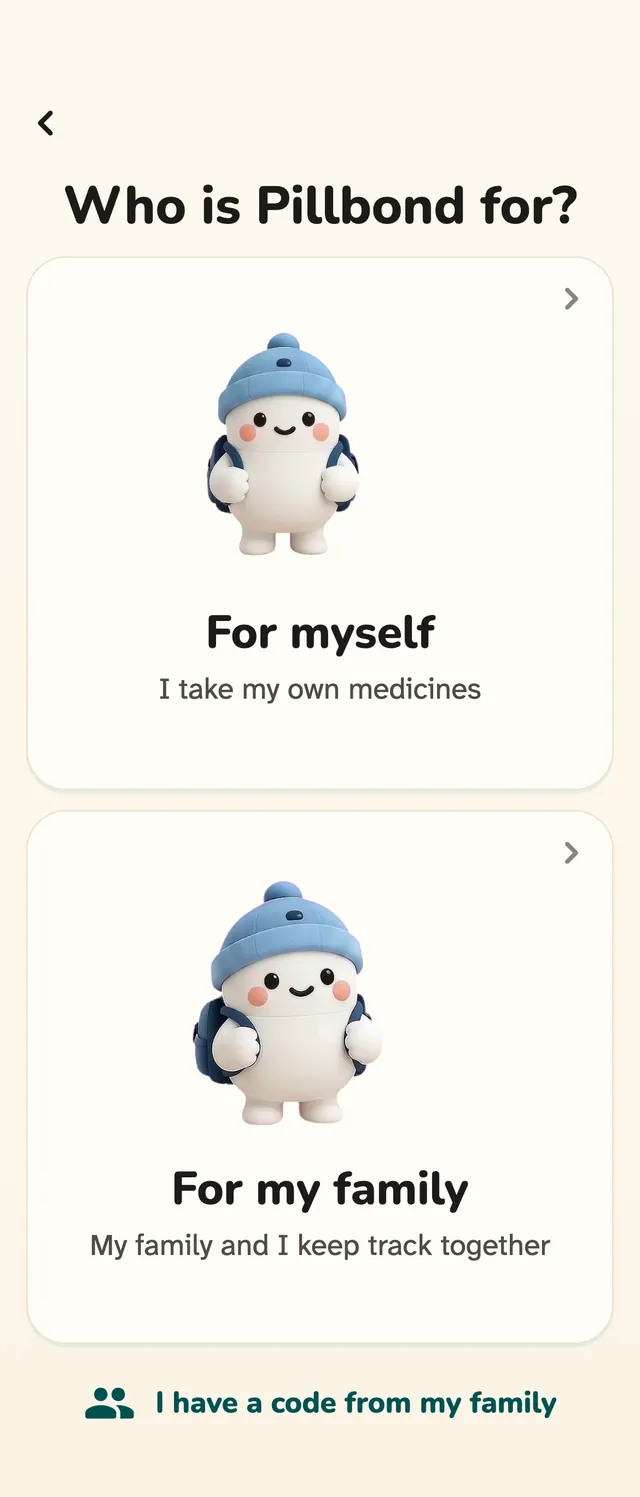
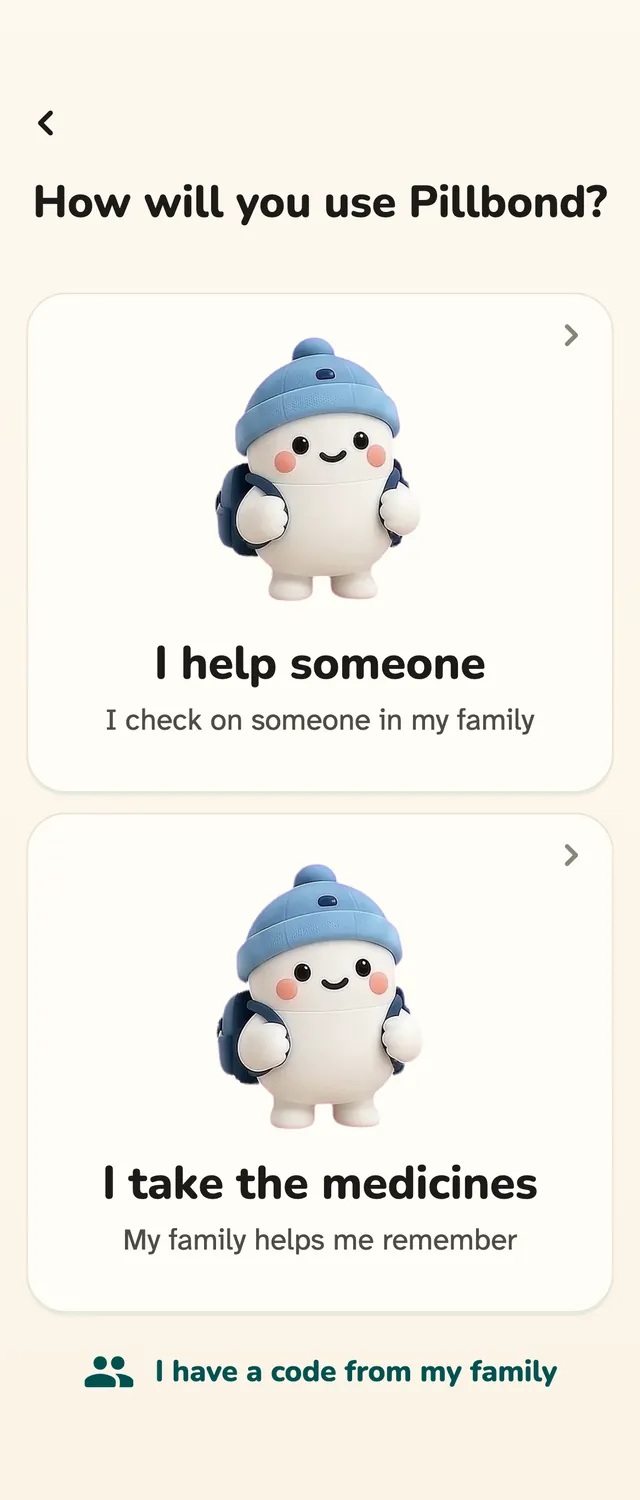
Choose For my family and I help someone
Open Pillbond, pick your language, then tap For my family and I help someone. Choose a buddy, then sign in with Google, Apple or email.
Steps
Step 1: Choose For my family and I help someone
Open Pillbond, pick your language, then tap For my family and I help someone. Choose a buddy, then sign in with Google, Apple or email.
What the buttons do
- For my family: sets Pillbond up for looking after someone.
- I help someone: you are the family member, not the person taking the medicines.
- I take the medicines: for the parent's own phone instead.
- Choose (buddy name): keeps the buddy that stands on your screens.
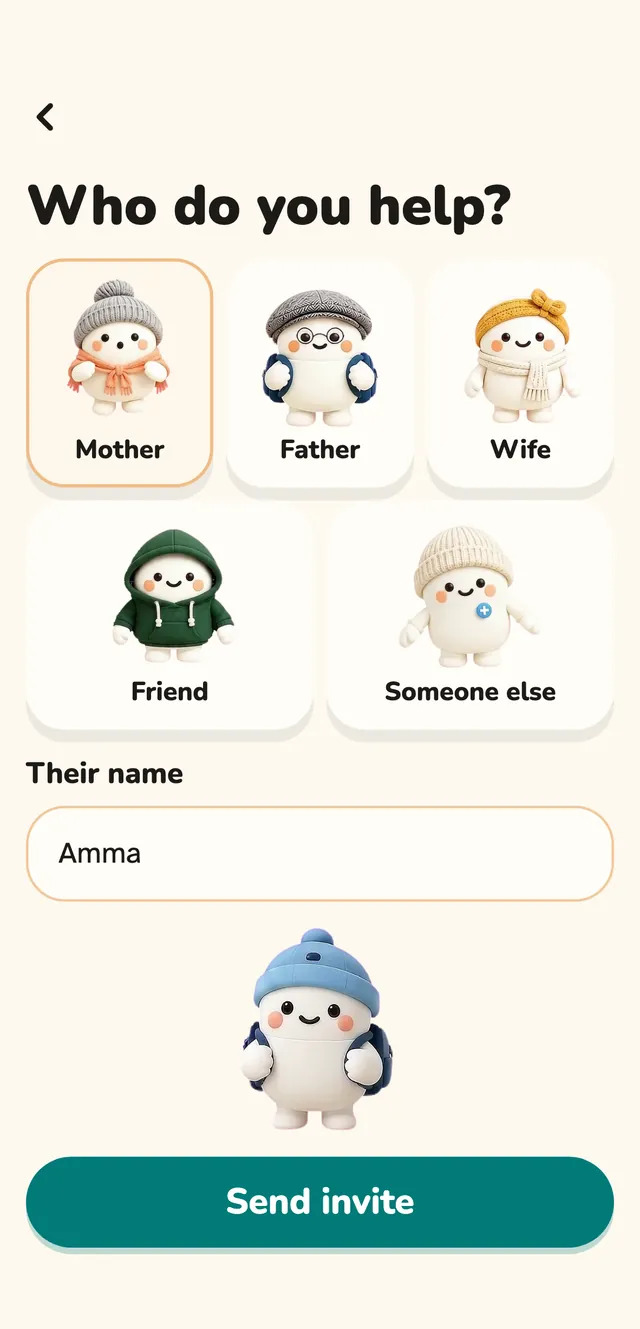
Step 2: Add your parent
On Home, tap Add parent. Pick who they are to you and type their name, then tap Send invite.
What the buttons do
- Mother, Father, Wife, Friend, Someone else: picks who they are and the picture shown for them.
- Their name: optional for Mother, Father, Wife and Friend. Needed for Someone else.
- Send invite: adds them and moves to their meal times.
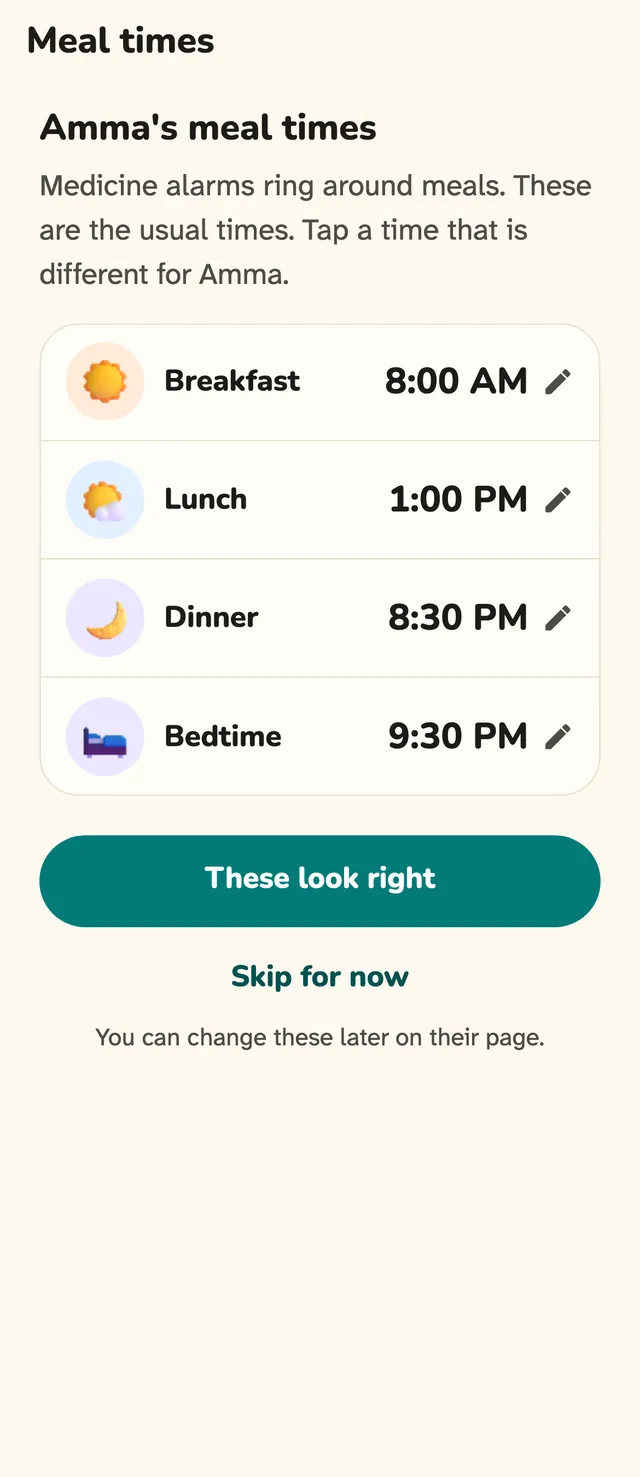
Step 3: Set their meal times
Alarm times come from your parent's meal times. Check Breakfast, Lunch, Dinner and Bedtime, then save.
What the buttons do
- A time: opens a big time picker.
- These look right: saves the times.
- Skip for now: keeps the starting times for their country.
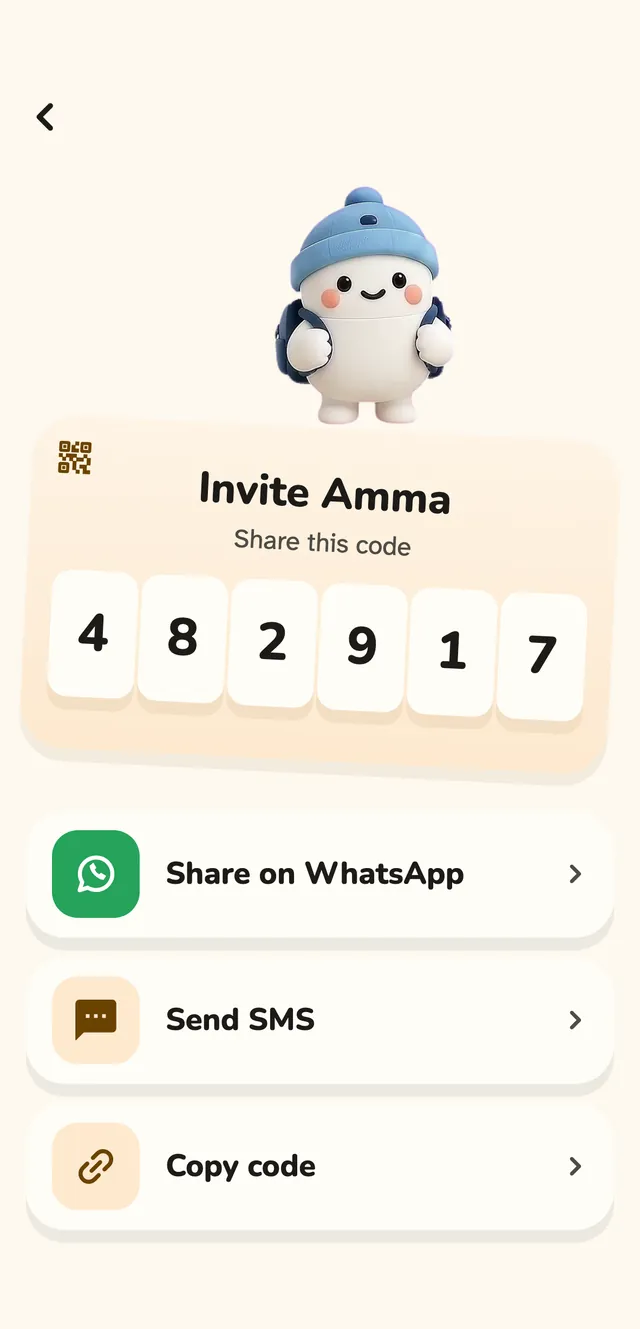
Step 4: Send the invite code
Pillbond shows a 6-digit code and a QR code for your parent's phone. Send it the way that suits them.
What the buttons do
- Share on WhatsApp: sends the code and link in WhatsApp.
- Send SMS: sends it as a text message.
- Copy code: copies only the 6 digits.
- The small QR: opens a full page QR your parent can scan from your phone.
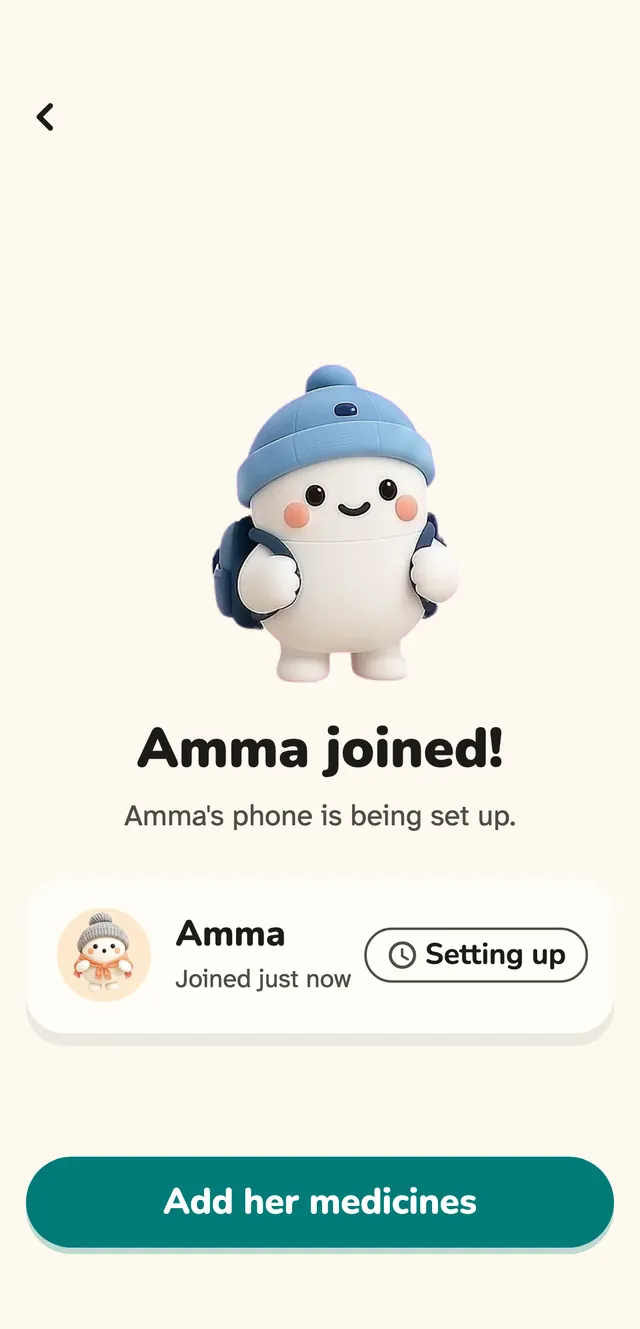
Step 5: Wait for your parent to join
After you send it, the screen says Waiting. When their phone joins, it says so by itself.
What the buttons do
- Send again: shows the same code and the send buttons again.
- Add their medicines: shows once they have joined.
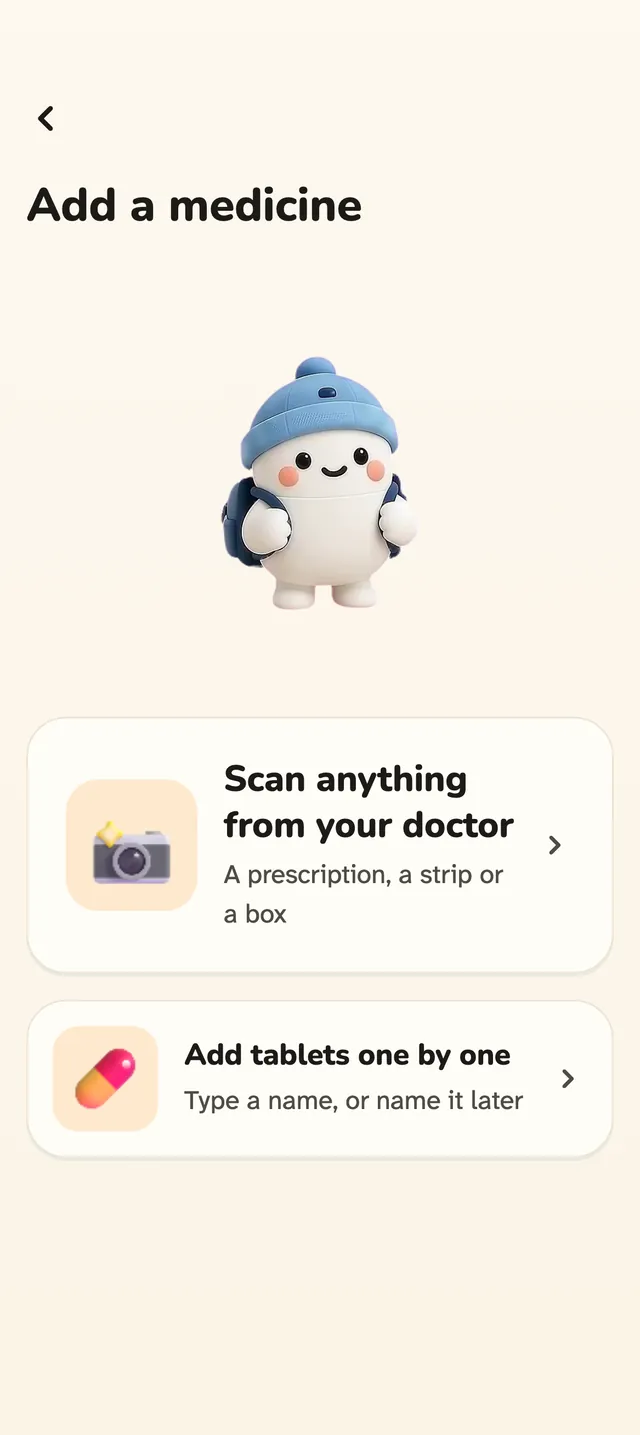
Step 6: Add their medicines
On your parent's page, tap Add medicine. Scan a paper from the doctor, or add tablets one by one.
What the buttons do
- Scan anything from your doctor: opens the scanner.
- Add tablets one by one: type the name, or tap Name it later.
- Minus and plus: how many tablets each time, 1 to 10.
- Next: opens the full form.
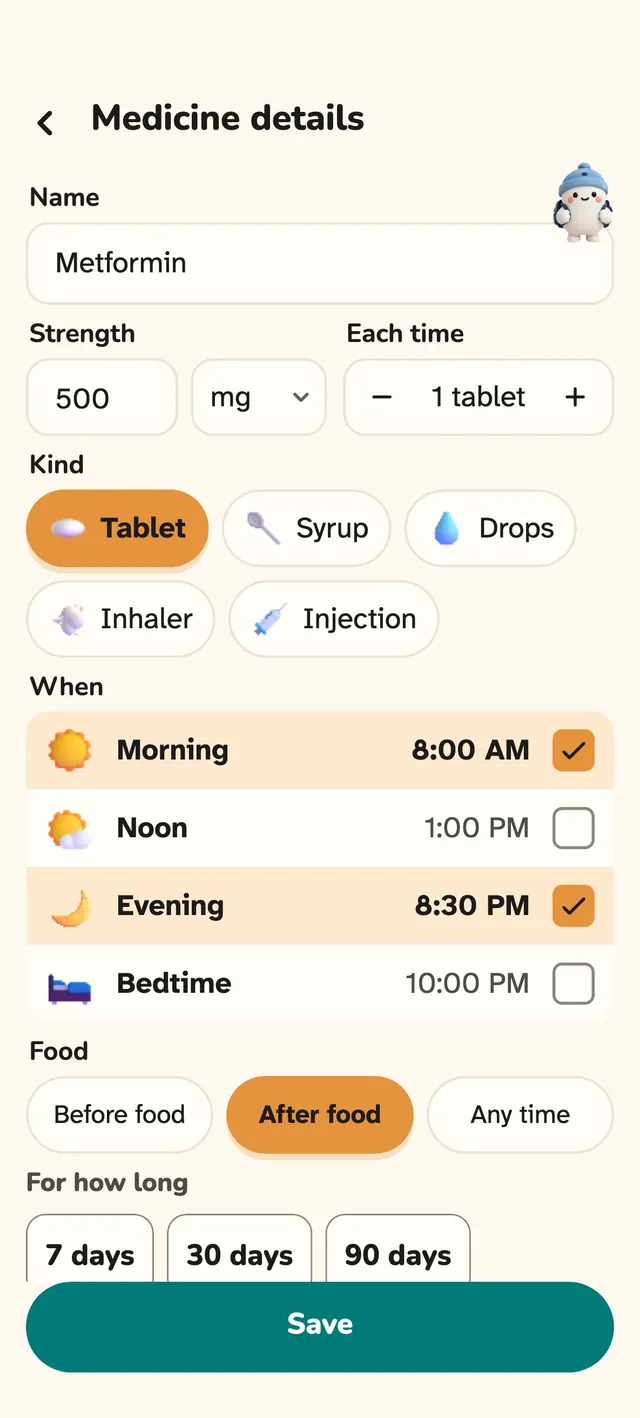
Step 7: Fill in the medicine form
Set the strength, the dose, when it rings, food and for how long, then tap Save.
What the buttons do
- When: Morning, Noon, Night and Bedtime, each showing your parent's clock time.
- Food: before food, after food, or with or without food.
- Kind: tablet, syrup, drops, inhaler or injection. Optional.
- For how long: 7, 30 or 90 days, or no end.
- Notes: your own note, up to 500 characters.
- Save: sends the alarms to your parent's phone.
- Stop this medicine: asks first, then stops it. Start again brings it back.
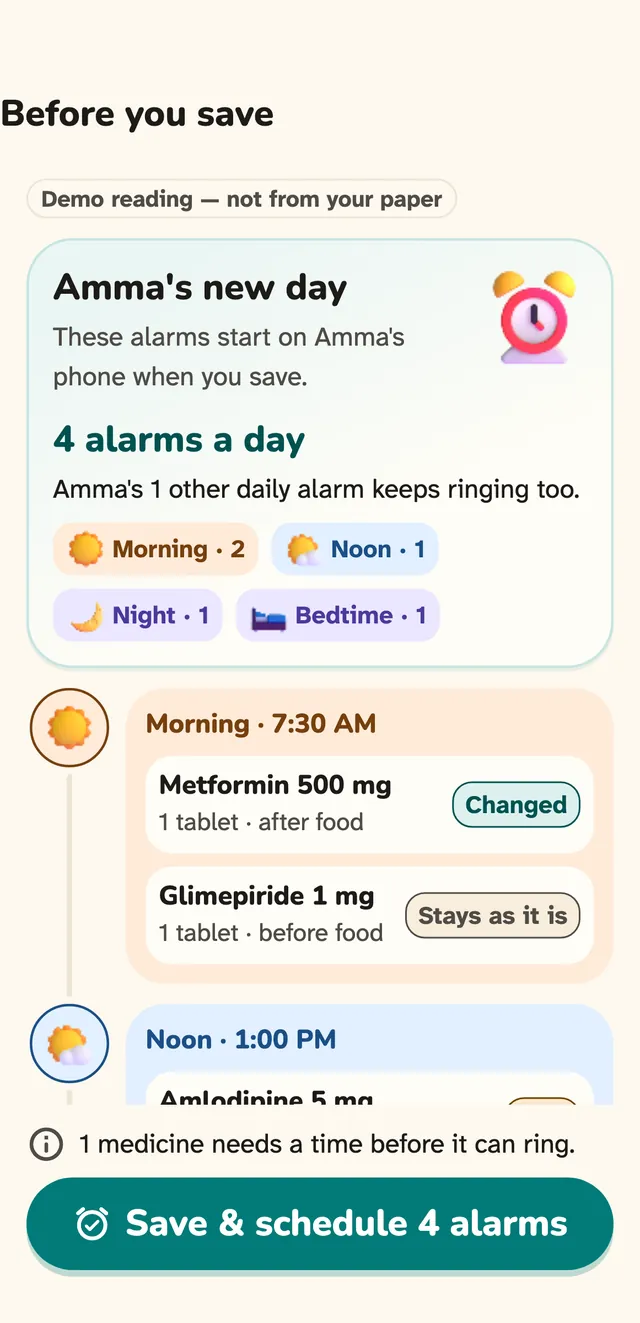
Step 8: Or scan the prescription
Tap Scan in the middle of the bottom bar. Photograph the paper, allow the AI to read it, then check every line before saving.
What the buttons do
- The round shutter: scans the pages with the phone's document scanner.
- Photo or PDF: picks a file you already have.
- Allow and read: sends the pages to be read. Not now stops.
- Is this (name)?: confirms the paper is for the right person.
- Save & schedule N alarms: saves after you review the new day.
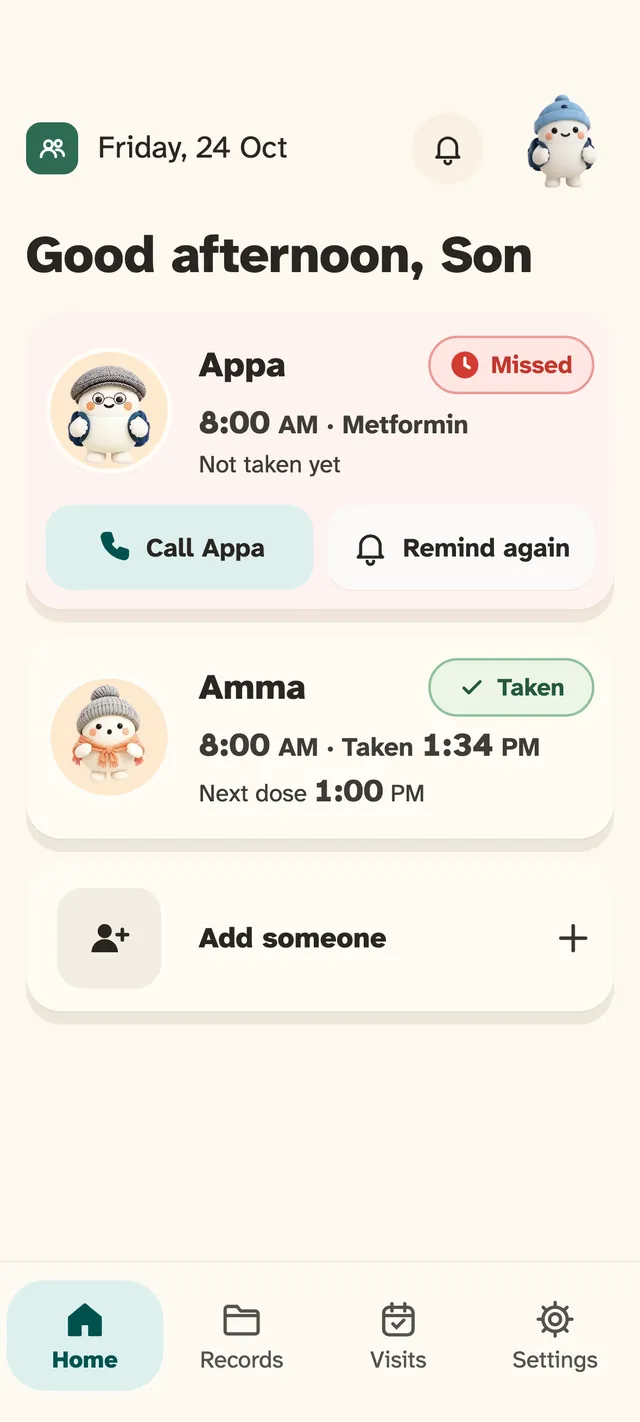
Step 9: Follow the day on Home
Home has one card for each person you look after. Each card shows the dose that matters most right now.
What the buttons do
- Call (name): calls your parent, when they have a number.
- Remind again: sends a loud reminder to their phone for a missed dose.
- A card: opens that person's page.
- Add someone: adds another person.
- The bell: opens recent activity.
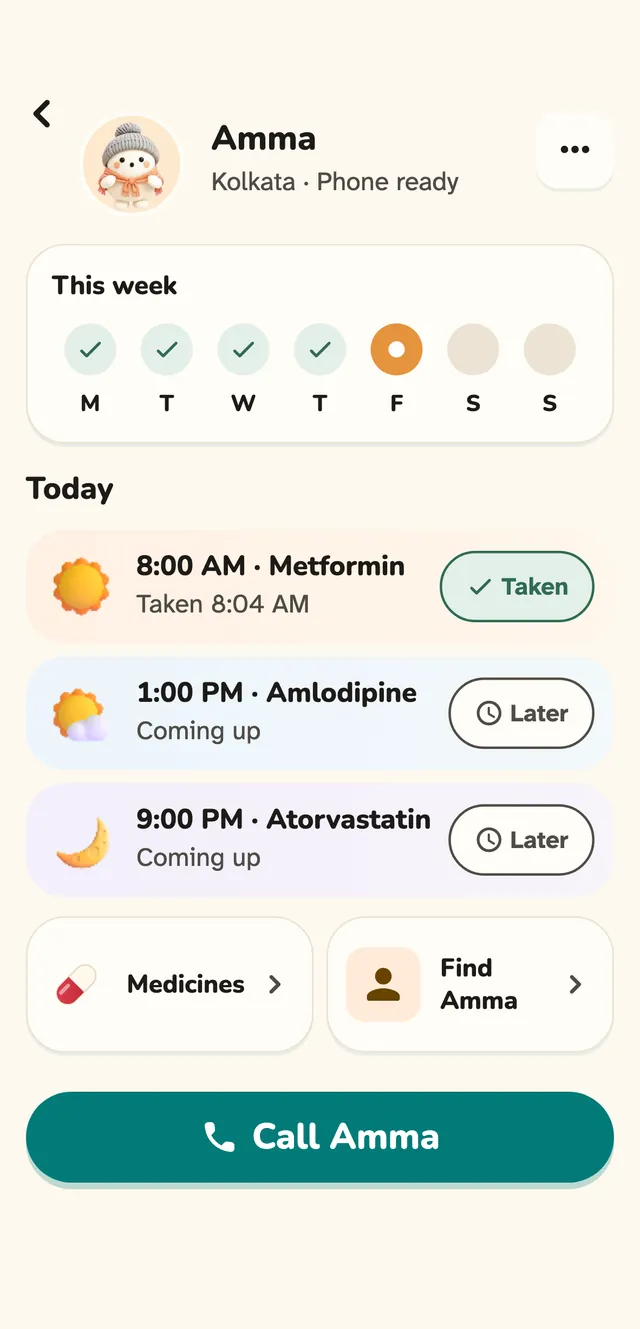
Step 10: Open your parent's page
The page shows their week, today's doses with each answer, and buttons for medicines, Find and Call.
What the buttons do
- Medicines: opens their medicine list.
- Find (name): asks their phone to share where they are. The parent chooses.
- Call (name): calls them.
- The three dots: care score, activity, dose history, monthly reports, emergency contacts and the phone card.
Step 11: Choose which alerts you get
Each family member chooses their own alerts for each parent, under Your notifications on that person.
What the buttons do
- Missed or skipped doses: one switch per parent.
- Reported taken, Reported skipped, Not sure, No response: a switch for each kind.
- Tell me if an alarm may not ring: warns when their phone may not ring.
- Quiet from and Quiet until: your own quiet hours.
Step 12: Answer a help request
When your parent taps Need help, every family member who follows up gets the request. Open it on Home.
What the buttons do
- I'll help: tells the family and your parent that you are helping.
- Take over helping: takes the request from another helper.
- Mark resolved: closes it. Only the current helper can do this.
Step 13: Bring in the rest of the family
Open the care team from Settings, Family. Invite a brother, sister or helper and choose what they may do.
What the buttons do
- Invite family: makes an invite for another family member.
- View, share and edit (Editor): can change medicines and alarm times, scan, and help with follow-up.
- View and share (Viewer): can see only.
- Make (name) see only: turns an editor into a viewer, after a confirm.
- Join with a code: joins a family someone else set up.
Step 14: Read the care score and monthly report
Open the three dots on your parent's page to see the care score, which shows how the last 30 days went. On the 1st of every month you get a report of last month for each parent.
What the buttons do
- Monthly reports (in the three dots): the list of reports, newest first.
- A month: opens the full report.
Good to know
- One family member owns each parent's profile. Others join by invite as editors or viewers.
- A parent can belong to more than one family, for example two children in different cities.
- Alarms ring on the parent's phone without internet. Answers are sent when the phone is back online.
- Every time in the app shows AM or PM, on the parent's clock, with their city when it differs from yours.
- Settings, Help, Show me around again replays the first-time tour. How Pillbond works is a short card tour.
- Remove from my family frees the seat and keeps the person's records. Deleting their records is a separate step that cannot be undone.
- You can keep your own medicines too: open Settings, Switch role, Myself. Alarms for your own medicines keep ringing on either side.
- Your plan is in Settings, Plan & subscription. Your parents never see a plan and have nothing to buy.
- Pillbond is not a medical device. It does not give advice or change doses.
Questions about this
Does my parent need a smartphone?
Yes. The alarm rings on your parent's own phone, which joins your family with the 6-digit code or QR you send.
What do I see when my parent misses a dose?
Their card on Home turns pink and says Missed. With alerts on, you also get a push. You can call them or tap Remind again.
The code stopped working. What now?
Codes last 2 days. Open Connect on their card and tap New code, then send the new one. The old one stops working.
Can my brother or sister help too?
Yes. Invite them from the care team and choose View, share and edit, or View and share.
Will I be woken at night?
Set quiet hours under Your notifications. Dose and help pushes are not sent during them. Your parent's alarms are not affected.
More guides
- ParentHow to use Pillbond as a parentFor parents whose family set up their medicines and sent them a code.
- EveryoneHow to use Visits in PillbondAppointments coming up, past visits, and the bills and papers from each one.
- MyselfHow to use Pillbond for yourselfFor adults who look after their own medicines, with no family needed.
- Myself and caretakerYour Pillbond plan: the Myself side and the caretaker sideFind Subscription, see what your plan covers, and switch between Myself and caretaker.