
Everyone
Sign in, manage your account and keep your data private
You sign in to Pillbond with Google, Apple or an email and password, and everything about your account lives under Settings, then Account. From there you can export your data, sign out or delete your account.
Checked against the app on 12 November 2026 · 15 steps · 8 min read
Part of this guide may change soon. A list of agreements you gave, with a Withdraw button, is built but not yet shown in Settings. The Terms and Privacy pages are drafts waiting for a lawyer's review. Report a problem has been checked on a computer but not yet on a phone.
Walk through it
Step 1 of 15
Pick your language
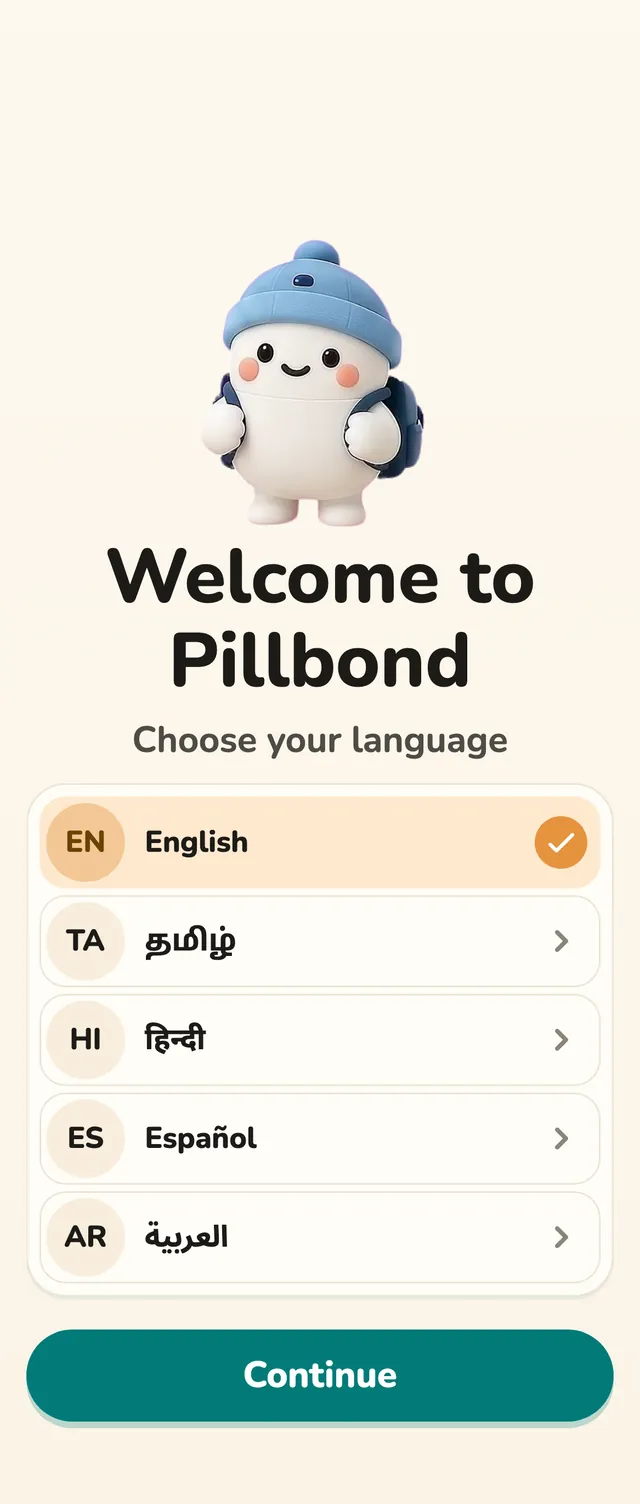
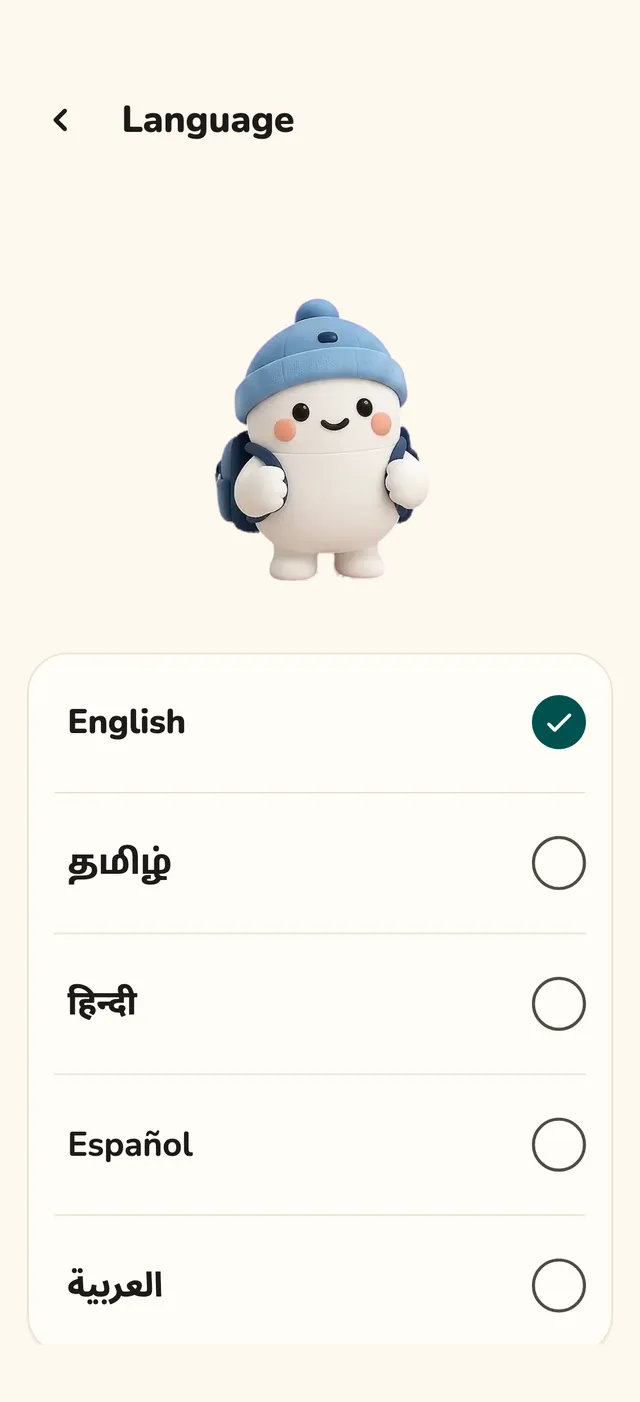
The first screen asks for your language. A tap switches the app at once; tap Continue to move on.
Steps
Step 1: Pick your language
The first screen asks for your language. A tap switches the app at once; tap Continue to move on.
What the buttons do
- Continue: goes to the next step.
Step 2: Say who Pillbond is for
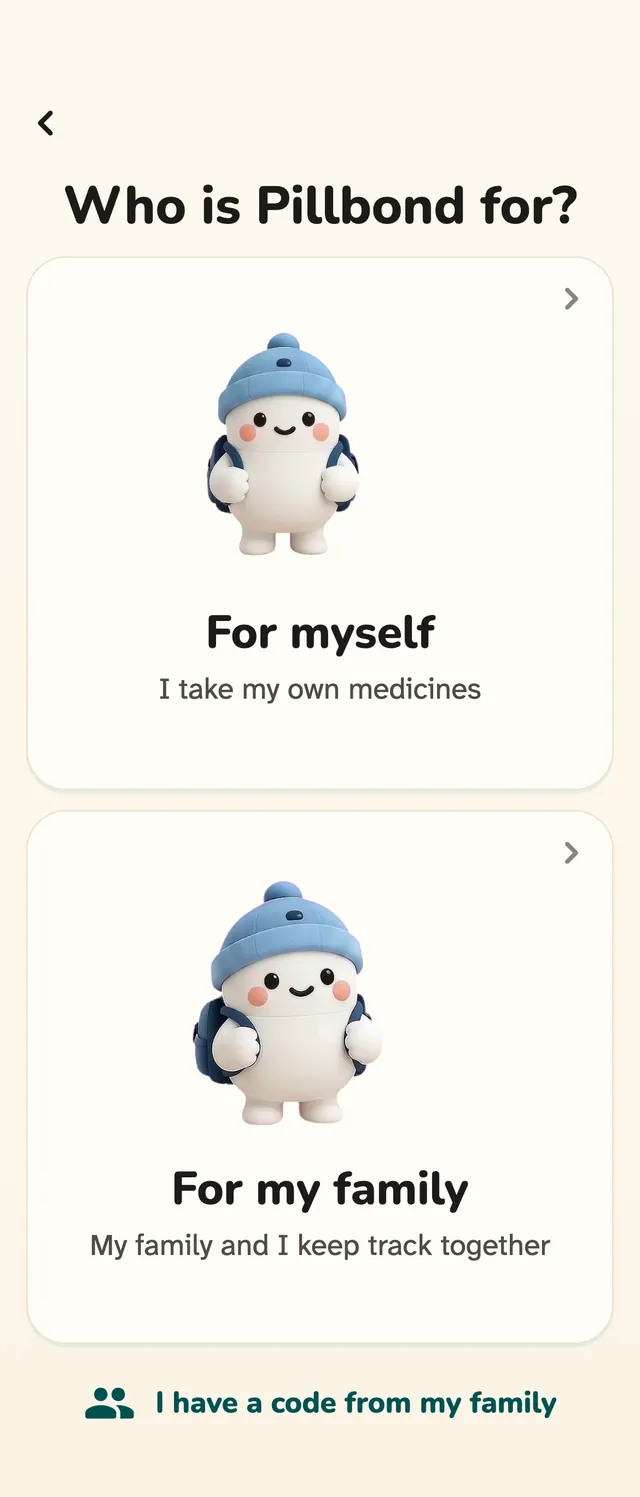
Choose For myself if you take the medicines yourself, or For my family if you look after someone. If your family sent you a code, tap I have a code from my family.
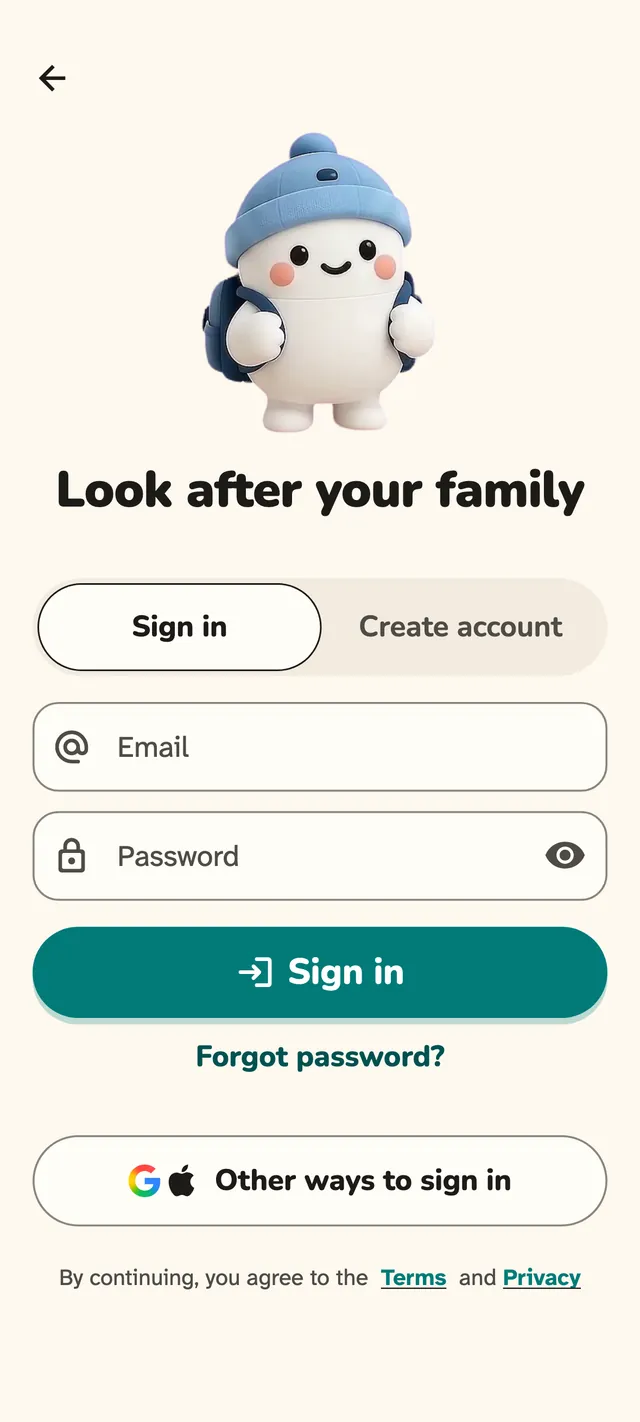
Step 3: Sign in or create an account
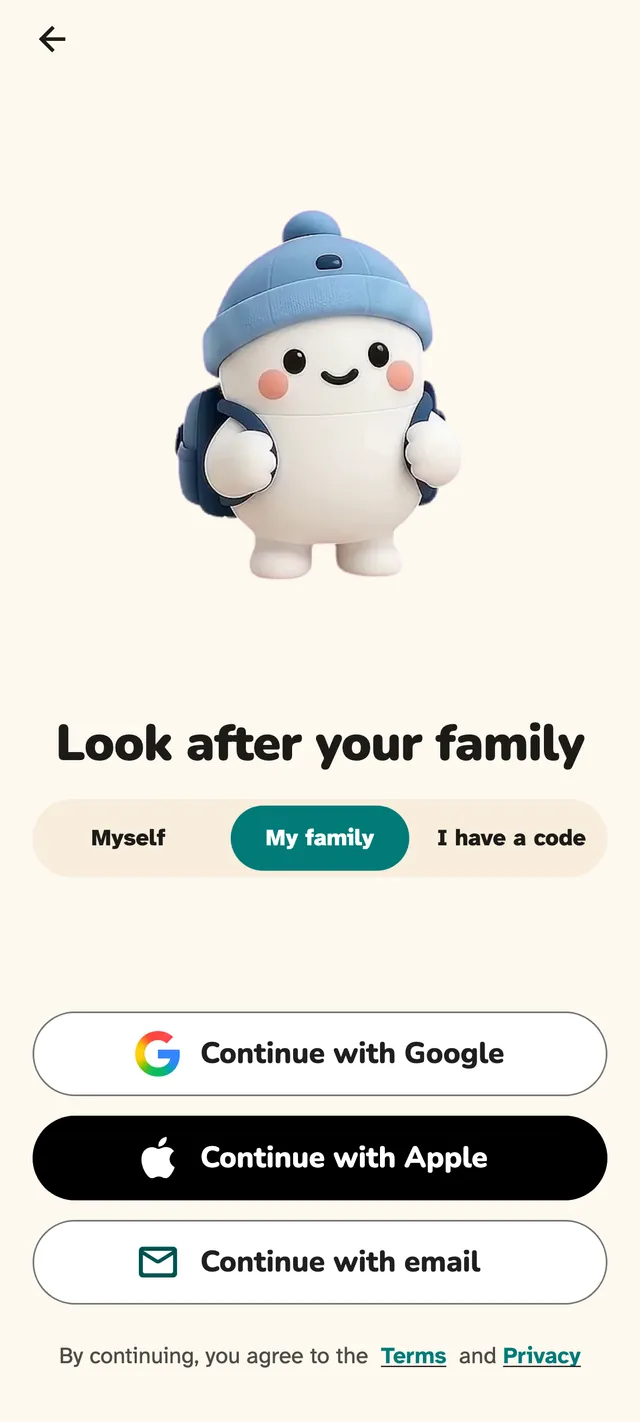
The sign-in screen shows your buddy, a small selector and three buttons. Pick the one you want; the same buttons work for every type.
What the buttons do
- Myself, My family, I have a code: the selector. It shows what you chose before and can change it.
- Continue with Google: signs in with your Google account.
- Continue with Apple: signs in with your Apple account.
- Continue with email: opens the email form.
- Terms and Privacy: links in the line By continuing, you agree to the Terms and Privacy.
Step 4: Use email and password
On the email form choose Sign in or Create account. A new email account gets a message to confirm the address.
What the buttons do
- Forgot password?: opens Reset your password and sends you an email.
- I've confirmed: tap after you click the link in the email.
- Resend email: sends the email again, after a short countdown.
- Use a different email: goes back to change the address.
- Other ways to sign in: back to Google and Apple.
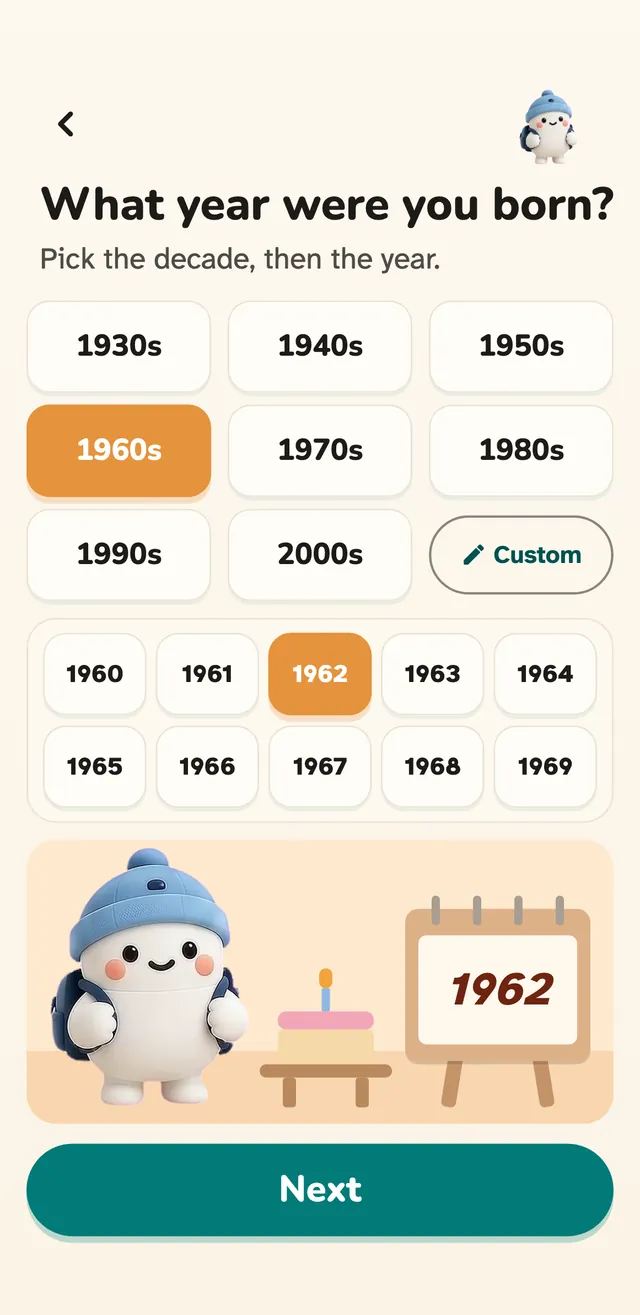
Step 5: Enter your year of birth
Right after the first sign-in, Pillbond asks what year you were born. Tap a decade, then your year, then Next.
What the buttons do
- Decade tiles: open the years of that decade.
- Custom: type a four-digit year.
- Next: keeps the year and moves on.
- Back: signs you out and goes back to sign-in.
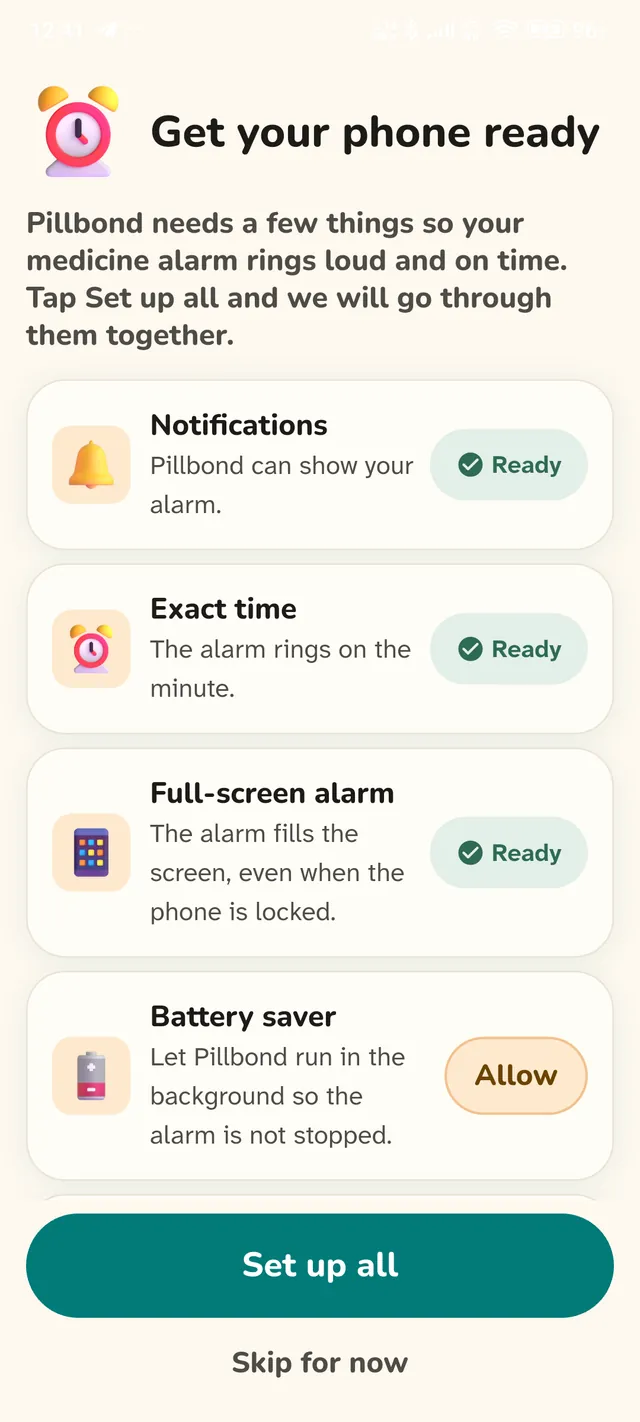
Step 6: Get your phone ready
Pillbond asks for every permission it needs in one step, so reminders and family alerts reach you.
What the buttons do
- Set up all: goes through each question and ticks each row green.
- Skip for now: leaves them for later.
Step 7: If you pick a different type at sign-in
The type you pick at sign-in opens that side of your account. My family opens the caretaker side, and Myself opens the Myself side, with a short setup if you have no medicines there yet.
Step 8: Switch between Myself and caretaker
One account can hold your own medicines and the people you look after. Open Settings and tap Switch role, then pick a side in the sheet Use Pillbond as. There is no sign-out.
What the buttons do
- Myself: your own medicines.
- Looking after my family: the caretaker side.
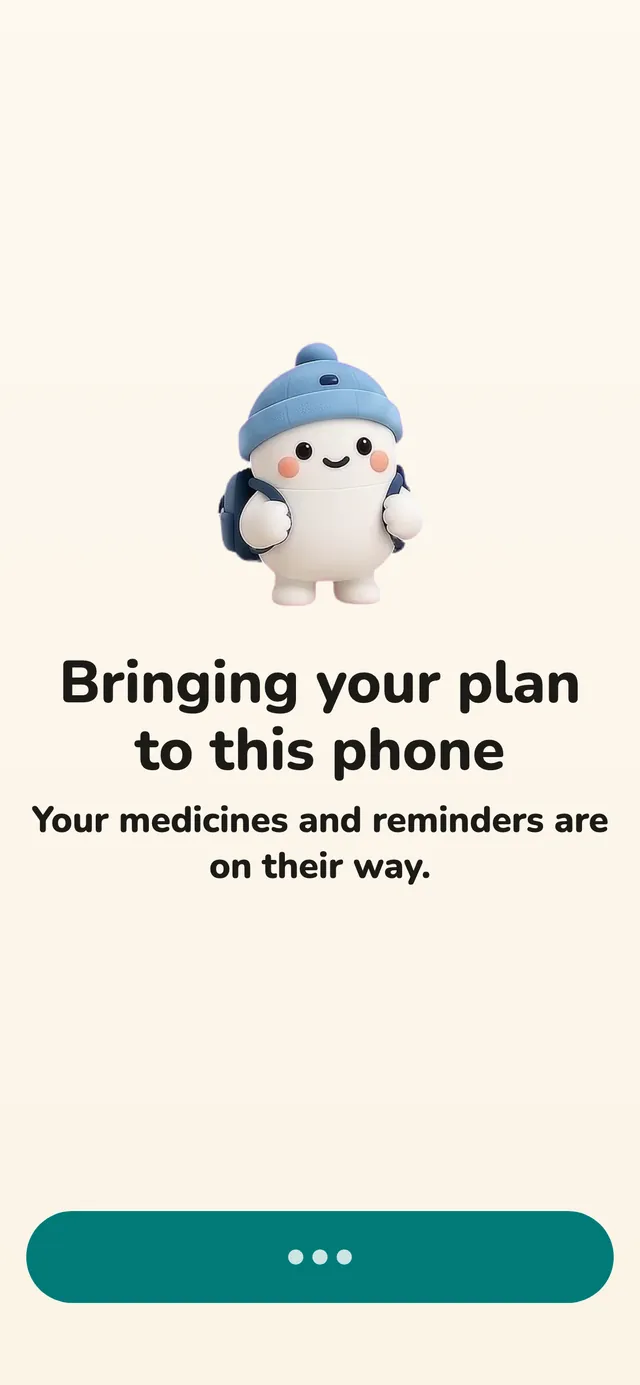
Step 9: Bring your medicines to a new phone
If you use Pillbond for yourself and sign in on a new phone, a short step brings your medicines and reminders over and makes this phone the one that rings.
What the buttons do
- Continue: finishes and goes to Today.
- Try again: shown if the phone is offline or the step fails.
- Not now: opens Today; the step comes back next time you open the app.
Step 10: Change the language later
Open Settings and tap Language, then pick one of the five languages. The app changes at once.
Step 11: Open the Account page
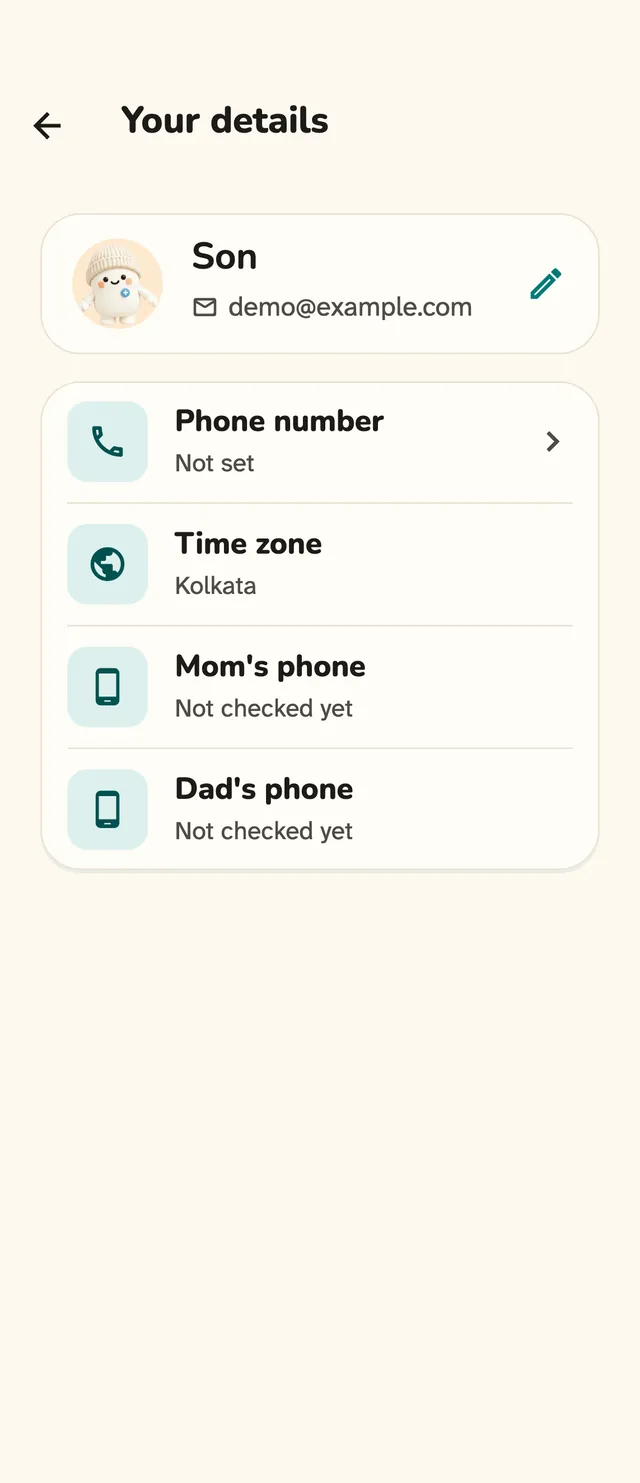
Go to Settings and tap Account. It holds everything about who you are signed in as and your data.
What the buttons do
- Link account: adds Google, Apple or email as another way to sign in. You confirm who you are first.
- Change password: for email accounts; sends a reset email.
- Export: one row per profile, under Your data.
- Sign out: opens the sign-out page.
- Delete account: in red at the very bottom.
Step 12: Export your data
Under Your data, tap Export and the person's name. Pillbond makes a file with that profile's data and shows it with a Share button.
Step 13: Sign out
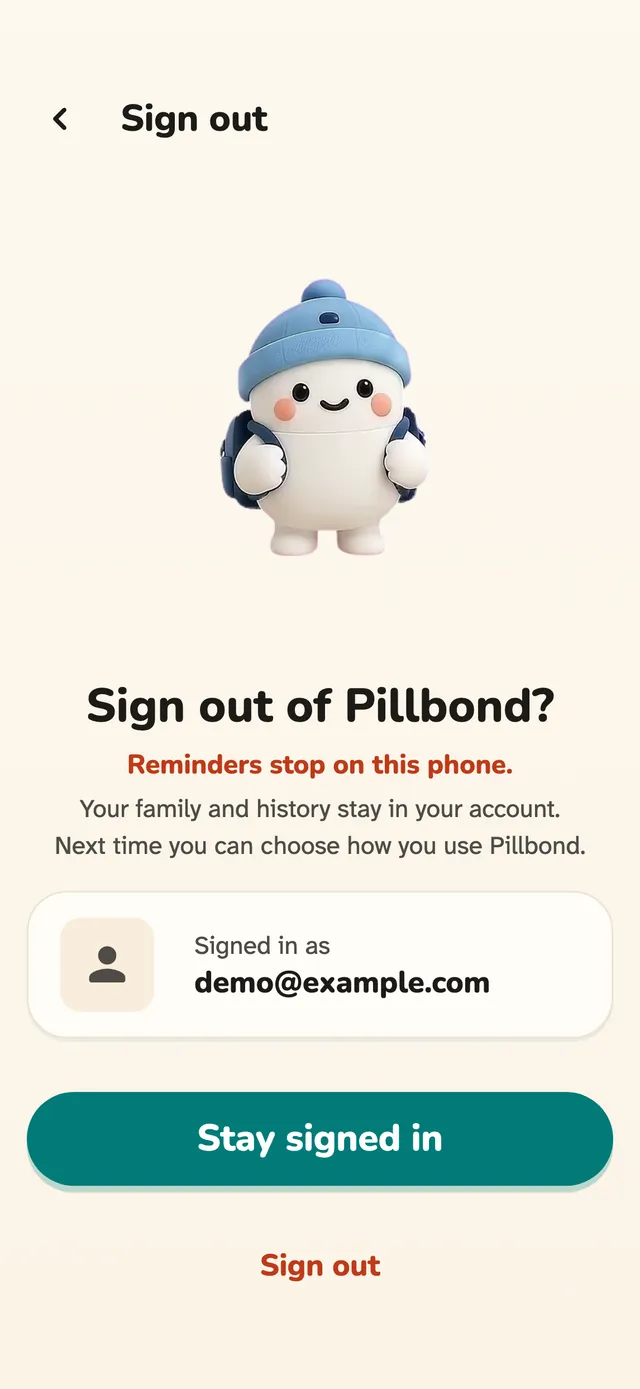
Tap Sign out. A page explains what stops and what stays, and you confirm.
What the buttons do
- Stay signed in: the main button; closes the page and changes nothing.
- Sign out: the red button under it.
Step 14: Delete your account
Tap Delete account. A full screen says what is deleted and what stays. Tick I understand my data can't be recovered, then confirm the same way you signed in.
What the buttons do
- Confirm with Google and delete, or Confirm with Apple and delete.
- Delete my account: for email accounts, after typing your password.
- Keep my account: backs out.
Step 15: Report a problem
Go to Settings, Help, Report a problem (on Myself, the Help group is on the Account page). Pick what is wrong, write what happened and send. It goes straight to the Pillbond team.
What the buttons do
- What is wrong: Reminders or alarms, Scan, Widgets or watch, Sign in or plan, Something else.
- What happened?: your words, 3 to 1000 characters.
- Include what happened to my reminders: adds 14 days of the reminder log, with no medicine names.
- Send report: shows a preview first, with Send and Cancel.
Good to know
- Pillbond reminds you of medicines your doctor prescribed. It is not a medical device and does not give medical advice.
- Lock screen and notification text is generic, such as Time for your medicine. Medicine names do not show there.
- Scanned papers are read by an AI service only after you agree. It keeps nothing, and nothing is saved until you check it.
- A shared location is deleted 24 hours after it was asked for.
- Drafts and offline copies on your phone are cleared when you sign out.
- Photos and scan pages are stored on Amazon S3 and deleted with the profile or account.
- Privacy policy, Terms and Contact us are at the bottom of Settings.
Questions about this
Which sign-in should I use?
Any of Google, Apple or email. Use the same one each time; you can link another way later on the Account page.
Is my year of birth stored?
Only on your phone. It is never sent to Pillbond's server.
What happens to alarms when I sign out?
Every reminder on that phone stops until you sign in again. Your medicines and history stay in your account.
Can I get a copy of my data?
Yes. Go to Settings, Account, Your data, and tap Export for the profile you want.
Does deleting my account cancel my plan?
A Google Play plan is cancelled for you. An App Store plan you cancel yourself in your iPhone's Settings, under your name and Subscriptions.
How do I tell you about a problem?
Use Settings, Help, Report a problem. It reaches the team directly, even if you send it while offline.
More guides
- MyselfHow to use Pillbond for yourselfFor adults who look after their own medicines, with no family needed.
- CaretakerHow to look after your parent with PillbondFor sons, daughters and helpers who set things up and follow a parent's day.
- ParentHow to use Pillbond as a parentFor parents whose family set up their medicines and sent them a code.
- Myself and caretakerYour Pillbond plan: the Myself side and the caretaker sideFind Subscription, see what your plan covers, and switch between Myself and caretaker.