
Everyone
Use Pillbond on your watch
Pillbond has its own app for Apple Watch and for Wear OS watches such as Galaxy Watch and Pixel Watch. When a dose is due the watch shows it, and you can answer Taken, In 10 min or Skip / not sure from your wrist.
Checked against the app on 12 November 2026 · 13 steps · 8 min read
Part of this guide may change soon. The watch apps are built and tested on a computer, but no real dose has yet been answered on a real phone and watch pair, and several screens (caretaker pages, sounds, the newest layouts) have not been seen on a real watch. Not built yet: Call and Remind again on a caretaker's watch, the parent's text-only watch screens, a late answer from the Missed screen, and the test reminder, Settings, Coming up and Syncing screens on Wear OS. Answer buttons on the iPhone notification forwarded to the watch, and the watch copy on Android, stay switched off until a real watch test. Whether medicine names appear on the watch is not settled in the docs, so this guide does not promise either.
Walk through it
Step 1 of 13
Open Wearables in Settings
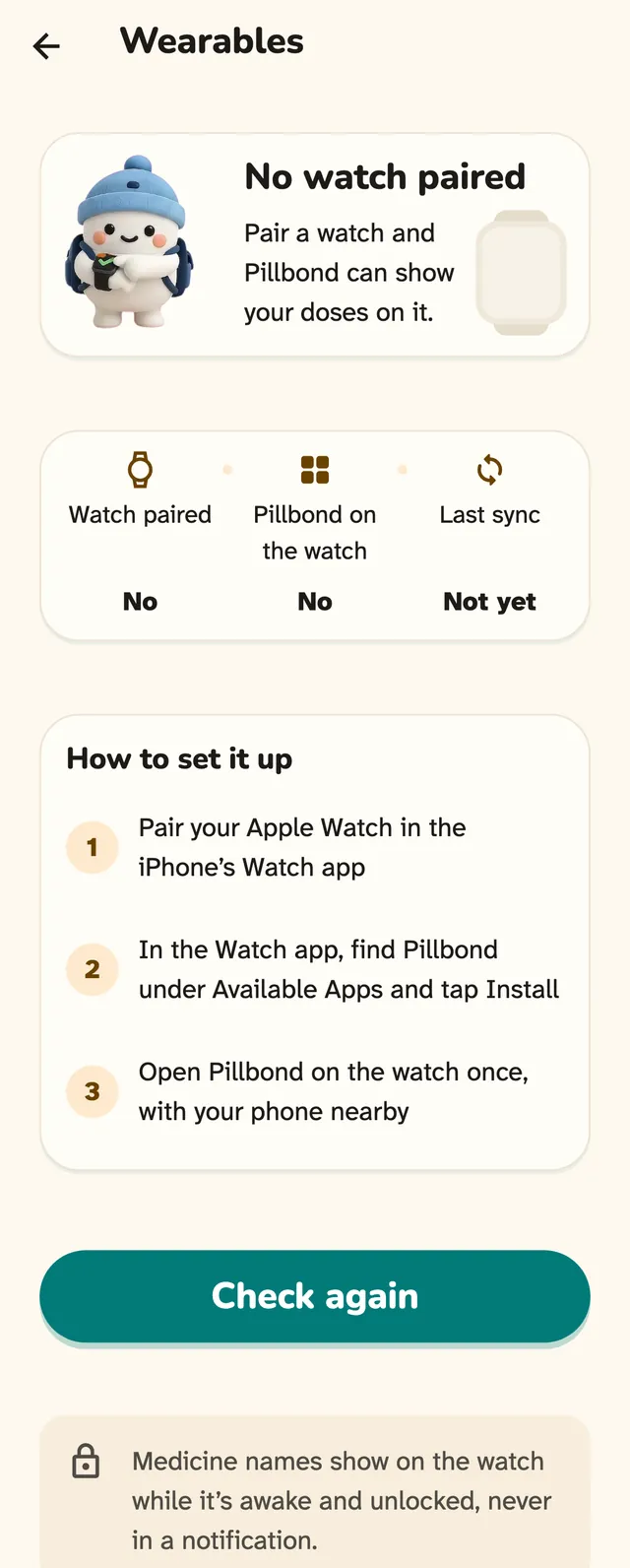
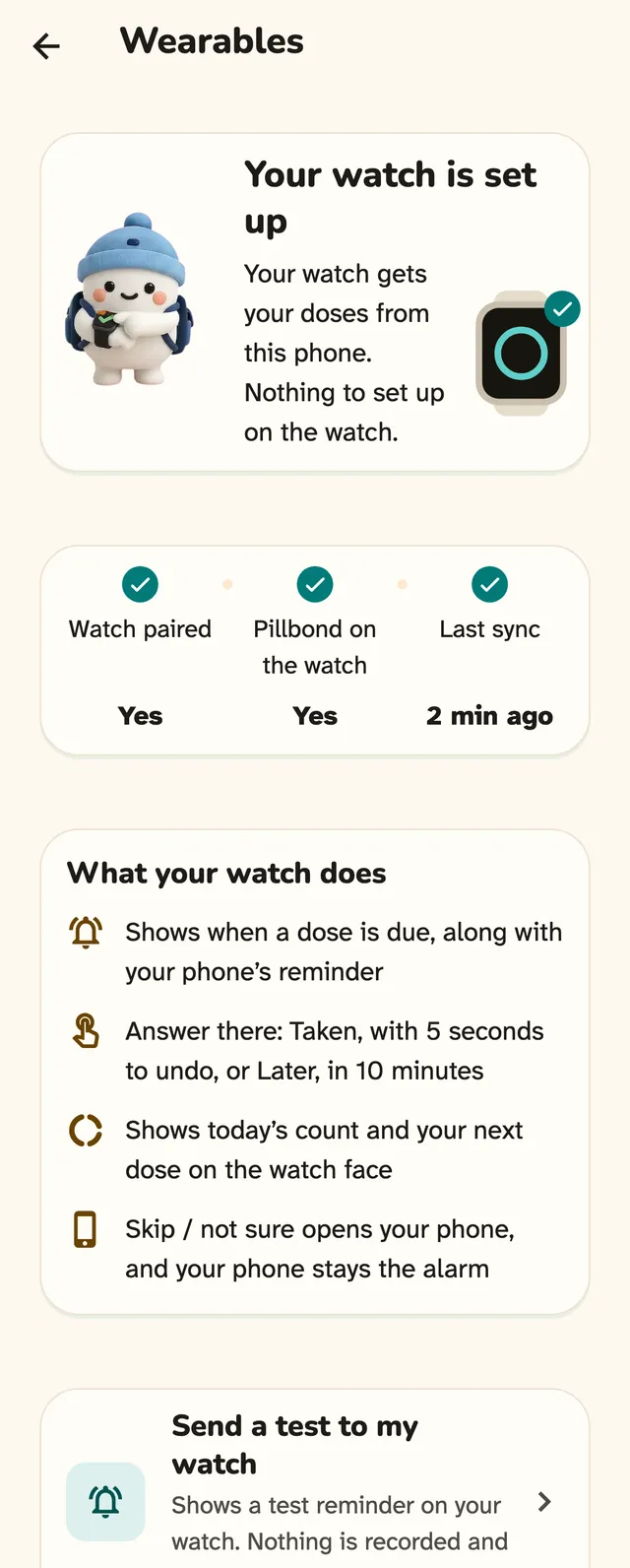
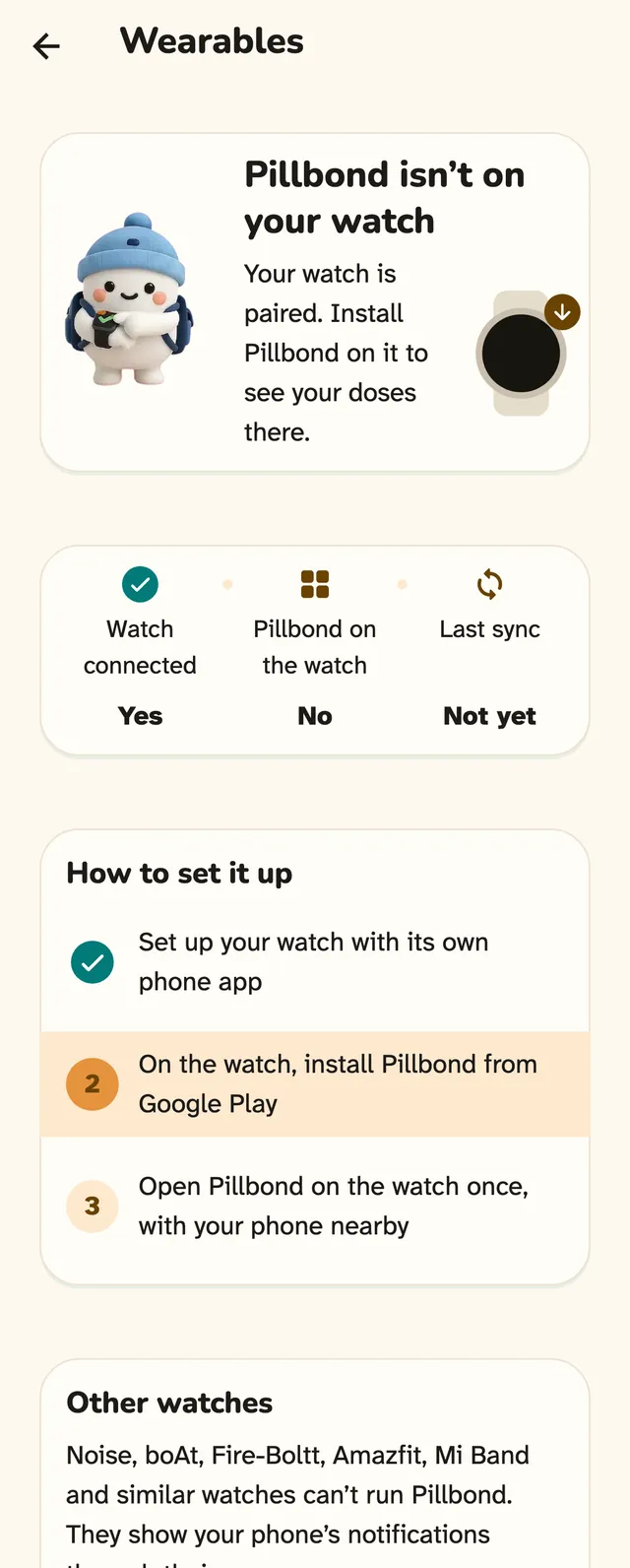
On your phone, go to Settings and tap Wearables. It shows which watch you have, one line about its state, and what to do next. It only shows status and setup; there is nothing to change on the watch from here.
Steps
Step 1: Open Wearables in Settings
On your phone, go to Settings and tap Wearables. It shows which watch you have, one line about its state, and what to do next. It only shows status and setup; there is nothing to change on the watch from here.
What the buttons do
- Check again: checks the watch, sends your doses again and waits a few seconds for the watch to confirm. It always ends with a short message.
- Send a test: shows a test reminder on the watch. Nothing is recorded.
Step 2: Follow the setup steps
The Wearables page walks you through three steps: pair a watch, install Pillbond on it, then open Pillbond on the watch. The page shows which step is left.
Step 3: Allow notifications on a Wear OS watch
On Wear OS 4 and newer, the Pillbond watch app asks to send notifications when you open it. Say yes, or the watch cannot alert you by itself.
Step 4: Let your phone keep the watch up to date
You do not need to set anything on the watch. Your phone sends it what it needs, and your answers go back by themselves.
Step 5: When a dose is due
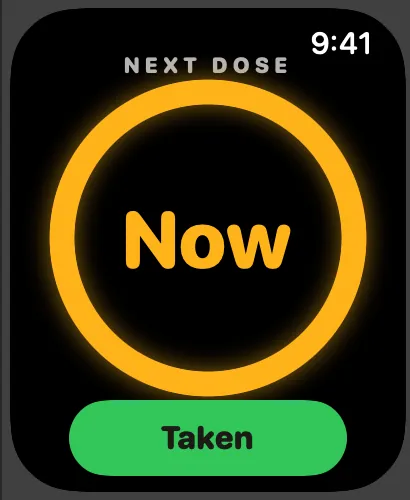
The watch shows the dose time, your buddy, Time for your medicine, and the answer buttons, all on one screen.
What the buttons do
- Taken: records the dose as taken, after a 5 second Undo.
- In 10 min: reminds you again in 10 minutes.
- Skip / not sure: on Apple Watch turn the crown down; on Wear OS scroll down once.
Step 6: Tap Taken, and undo if needed
After Taken the watch shows Dose taken!, today's count such as 1 of 4 taken, and Undo with a 5 second countdown. The answer is sent when the 5 seconds end.
What the buttons do
- Undo: puts the dose back as it was. Nothing is recorded, and your family never sees it.
Step 7: Use Skip / not sure
Skip / not sure opens a second screen with Skip and Not sure. With Skip you can also pick a reason. Both are recorded, just like on the phone.
Step 8: Look at your day on the watch
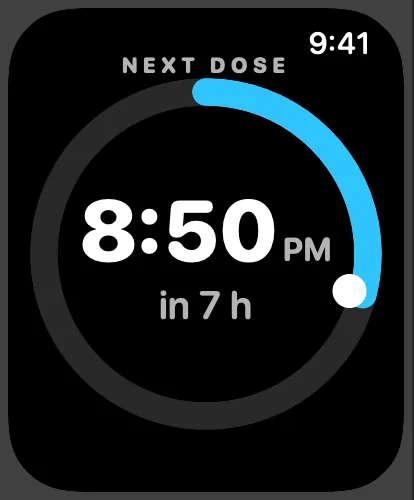
With nothing due, Home shows today's count with a dot for each dose, Next with the time, and your buddy. On Apple Watch, turn the crown to see more pages.
What the buttons do
- Open: opens the dose screen.
- Today page (Apple Watch): each dose with its time and status. Tap a row for details.
- Coming up page (Apple Watch): the next doses as cards.
Step 9: Add a tile or complication
Put Pillbond on your watch face to see today's count and the next dose time without opening the app.
Step 10: Change settings on Apple Watch
On Apple Watch, turn the crown to the last page, Settings. These settings are kept on that watch only.
What the buttons do
- Haptics: turns the taps on or off.
- Sound effects: turns the due chime and other sounds on or off.
- Voice: kept on the watch, not used yet.
- Show Bento: shows or hides the buddy.
- Mood pictures: turns the buddy's mood pictures on or off.
- Complications help: explains how to add Pillbond to a watch face.
- Send test: shows a test reminder that records nothing.
Step 11: If you look after family
On a caretaker's watch, each person gets a full page with their picture, name, today's count and a status. Swipe to see the next person.
Step 12: Understand the other watch screens
The watch tells you plainly when it cannot do something, and what to do instead.
Step 13: Use another kind of smartwatch
Watches such as Noise, boAt, Fire-Boltt, Amazfit or Mi Band cannot run Pillbond. They show what their maker's phone app copies from your phone's notifications.
What the buttons do
- Look for my watch (Android, Settings, Wearables, Other watches): checks for a known watch app or watch name. It asks for the Nearby devices permission first.
Good to know
- Your phone stays the main alarm. The watch only alerts for doses the phone still lists as open, and never after the cut-off.
- After a restart, a clock change or a time zone change, a Wear OS watch sets its alerts again by itself.
- If the Pillbond app is not running on your iPhone, a watch answer waits until you next open it, and the phone alarm keeps ringing until then.
- The watch works in English, Tamil, Hindi, Spanish and Arabic, following the phone app's language. Arabic reads right to left.
- Large text is supported. On a small watch the screen scrolls with the crown when words are long.
- Always-On and Reduce Motion show a still picture instead of an animation.
Questions about this
Do I need to set anything up on the watch?
No. Install and open Pillbond on the watch. Your phone sends your doses, language and buddy, and the Wearables page in Settings shows when it is set up.
Can I answer a dose without touching my phone?
Yes. Tap Taken, In 10 min or Skip / not sure on the watch. The answer goes to your phone and your family by itself.
Why does my Apple Watch chime but my Wear OS watch only buzzes?
This is on purpose. A Wear OS sound would play on top of your phone's alarm, so it buzzes only. Apple Watch chimes only while the Pillbond app is open.
I tapped Taken by mistake. What now?
Tap Undo within 5 seconds. Nothing is recorded and your family never sees it.
Can I answer a missed dose on the watch?
Not yet. After the cut-off the watch says Answer on your phone.
More guides
- EveryoneUse Pillbond widgets on your home screenPut the next dose and your family's day on your home screen, on Android and iPhone.
- Parent and SelfHow to make Pillbond alarms ring on AndroidAllow the few phone settings that let the medicine alarm ring on time, full screen and out loud.
- Parent and SelfHow Pillbond alarms work on iPhoneAllow alarms and notifications on iPhone, test a reminder and know what iPhone allows and what it does not.
- CaretakerHow to look after your parent with PillbondFor sons, daughters and helpers who set things up and follow a parent's day.