
Everyone
Use Pillbond widgets on your home screen
A Pillbond widget shows the day at a glance on your home screen: the next dose time, how many medicines are in it and how the day is going. It never shows a medicine name, and a tap opens the app.
Checked against the app on 12 November 2026 · 12 steps · 9 min read
Part of this guide may change soon. Most of the newest widget look (styles, Family circle, the Widgets screen) is built and tested on a computer but not yet seen on a real phone. On iPhone, widgets do not yet follow the choices on the app's Widgets screen; each keeps its own Edit Widget choices. The iPhone Family circle widget, the Appearance and Show the character choices on iPhone, and some styles listed in Edit Widget (they show the widget's own look for now) are not built yet. Arabic right to left layout of the new Android cards is not built. The iPhone Live Activity with a countdown and Taken and Later buttons is written but not yet built and tested on a phone.
Walk through it


Step 1 of 12
Open the Widgets screen in Settings
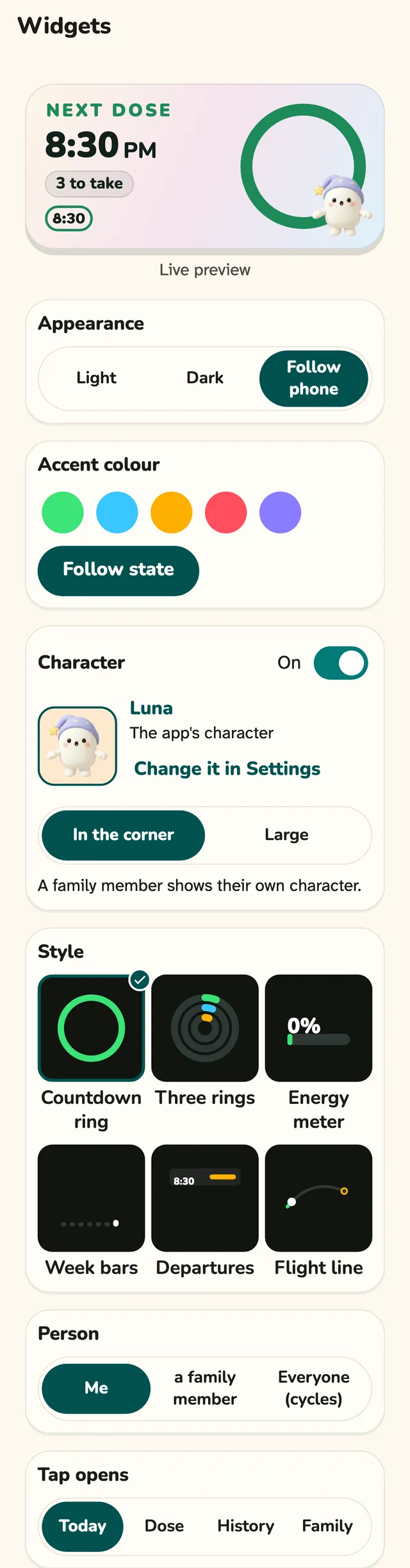
Go to Settings and tap Home-screen widget. You see a live preview of a widget with your own next dose, and every choice under it. Each choice is saved the moment you tap it.
Steps
Step 1: Open the Widgets screen in Settings
Go to Settings and tap Home-screen widget. You see a live preview of a widget with your own next dose, and every choice under it. Each choice is saved the moment you tap it.
What the buttons do
- Appearance: Light, Dark or Follow phone. The preview changes to match.
- Accent colour: lime, cyan, amber, coral, violet, or Follow state.
- Character: an On switch, then In the corner or Large.
- Style: six small tiles: Countdown ring, Three rings, Energy meter, Week bars, Departures, Flight line.
- Person (family accounts only): a family member, or Everyone, which takes turns.
- Tap opens: Today, Dose, History, and Family on a family account.
- All widgets: opens the list where you add a widget or change one by itself.
Step 2: Add a widget on Android
On the All widgets list, tap Add on the widget you want and Pillbond places it on your home screen. If your phone does not allow that, the card shows short steps: touch and hold the home screen, tap Widgets, then find Pillbond.
What the buttons do
- Add: places that widget on the home screen.
- Customize: shown for each widget already placed, opens its own settings.
Step 3: Add a widget on iPhone
iPhone apps cannot place a widget for you, so the Widgets page shows three short steps. Touch and hold the home screen, tap the plus button, then search for Pillbond and pick a widget and size.
Step 4: Read the Next dose widget
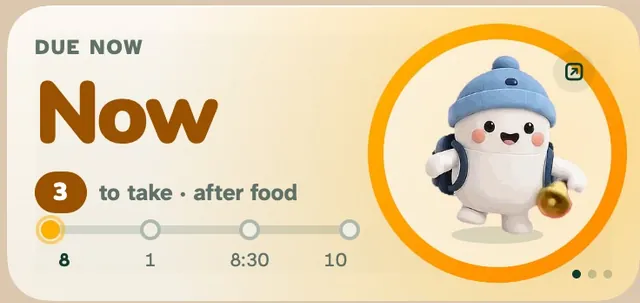
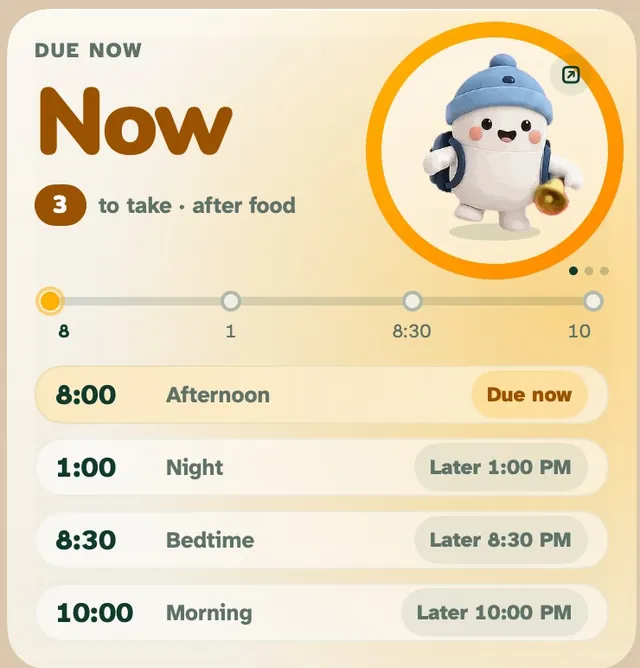
Next dose shows the time of your next dose in large numbers, a chip with how many medicines to take, and a simple line such as 3 medicines, after food. A track of dots shows today's doses with their times.
Step 5: Read the Today and Day plan widgets
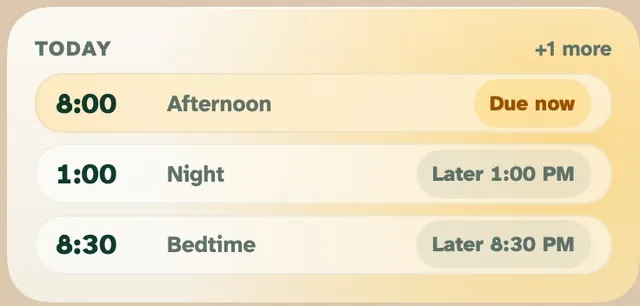
Today lists the day's dose times with a word for each one, such as Taken, Next, Coming up, Due now or Missed. On a bigger widget you see more rows.
Step 6: Answer a dose from the right place
Widgets do not record a dose. Tap the widget to open Pillbond, then answer there, or answer on the alarm, the notification or your watch.
What the buttons do
- Tap anywhere on the widget: opens the app (or what you chose under Tap opens). Nothing is recorded.
- Pager button (1 of 3 with an arrow): shows the next page. Only drawn when there is more than one page.
- Tap on the character (Android): plays a short animation. It opens nothing and records nothing.
Step 7: Follow your family with the Family widget
On a family account the widget shows one card for each person you look after, with their first name. Cards change about every 2.5 seconds, and the person who needs a look comes first.
Step 8: Use Family circle on Android
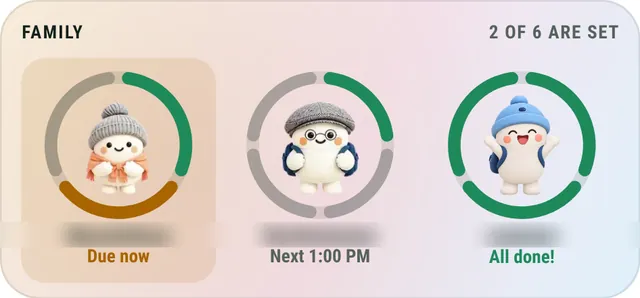
Family circle shows every person's character inside a ring of today's doses, with their first name and one word: Due now, Missed and a time, Next and a time, or All done!
What the buttons do
- Tap a person: opens that person's page.
- Tap anywhere else: opens the family page.
- Edit page: Appearance, Accent colour, Background, Show the character, People, and Tap opens.
Step 9: Change one widget by itself on Android
Touch and hold a placed widget and use your launcher's Edit or Reconfigure, or tap Customize next to it in the app. A page opens with a live preview and the widget's own choices.
What the buttons do
- Style, Accent colour, Background (Black, Graphite, Glass).
- Appearance: Light, Dark or Follow the phone.
- Show: Countdown, Day track, Week, Number to take, Percent.
- Show the character: on by default, In the corner or Large.
- Person (family with several people) and Tap opens.
Step 10: Change one widget by itself on iPhone
Touch and hold the widget and tap Edit Widget. The system shows a sheet with Pillbond's choices for that widget.
What the buttons do
- Style, Accent colour, Background (black, graphite, glass, light).
- Five Show switches: countdown, day track, week strip, streak, percent.
- Character: off, corner peek or full.
- Person: me, a family member, or each in turn.
- Tap opens: Today, the dose, History, the family page.
Step 11: See the lock screen and StandBy
Lock screen widgets show counts and times only, never a medicine or a person's name. On iPhone, StandBy shows a dark card with the next dose time; at night the iPhone tints it red by itself.
Step 12: Understand the empty cards
When there is nothing to show yet, the widget tells you what to do. A tap takes you to the right place.
Good to know
- No widget shows a medicine name or a picture of a pill, on any size, the lock screen or StandBy.
- The app updates the widget when you open it, answer a dose, snooze, change the schedule, the character or the language.
- On Android the widget also redraws at dose times and every 15 minutes for the time left. A phone in deep sleep may show a line a few minutes old until it wakes.
- Family phones get a quiet refresh after a parent answers, misses a dose or asks for help. iPhones may delay this; opening the app refreshes it anyway.
- The chart widgets that show past days (Streak, Week, Heatmap, Family week) fill in after you open History in the app once.
- Signing out clears every widget and shows Open Pillbond to get started.
- Words come from the app in its five languages, and times use the 12-hour clock.
- Large text and Reduce Motion are respected: the character shrinks first, and moving pictures become still.
Questions about this
Can I mark a dose as taken from the widget?
No. A tap on the widget opens Pillbond. Answer in the app, on the alarm, on the notification or on your watch.
Why don't I see the medicine names?
Widgets sit on your home screen where others can see them, so they show times and counts only, never names.
Pillbond is missing from my Xiaomi phone's widget list. What do I do?
Open Pillbond, go to Settings, then Home-screen widget, then All widgets, and tap Add. That places the widget directly.
How do I change the character on the widget?
The widget follows the character you chose for the app. Change it in Settings, Your buddy. You can turn the character off or make it larger on the Widgets screen.
What do the dots or 1 of 3 mean?
The pager shows only when the widget has more than one page, for example one page per person on a family account. Tap the arrow to see the next page.
More guides
- EveryoneUse Pillbond on your watchGet your dose on your wrist and answer it there, on Apple Watch and Wear OS.
- Parent and SelfHow to make Pillbond alarms ring on AndroidAllow the few phone settings that let the medicine alarm ring on time, full screen and out loud.
- Parent and SelfHow Pillbond alarms work on iPhoneAllow alarms and notifications on iPhone, test a reminder and know what iPhone allows and what it does not.
- CaretakerHow to look after your parent with PillbondFor sons, daughters and helpers who set things up and follow a parent's day.